I bought an LG Gram View 2 as an external monitor for my MacBook M1. But when I connected it without any settings, the Gram View screen looked kind of grainy and not sharp. It wasn't my eyes being weird — the MacBook screen was crisp, but even the same content looked slightly blurry on the external monitor.
I searched to see if it was a cable issue or a settings issue, and found that others had similar experiences. There were several programs out there, but I found an open-source program on GitHub, so I'm writing this based on applying that.
First, go to one-key-hidpi on GitHub.
If you go to the Usage section, it explains how to apply it without needing my explanation.
How to Use the Program#
First, open your favorite terminal. I use iTerm2.
Step 1#
Copy and paste the following into your terminal, then press Enter to run it. As always, to proceed to the next step, you need to type something and press Enter.
bash -c "$(curl -fsSL https://raw.githubusercontent.com/xzhih/one-key-hidpi/master/hidpi.sh)"Once the program runs, you'll see text like below. You need to select which monitor to configure HiDPI for. Since mine is the LG Gram View, I selected option 2.
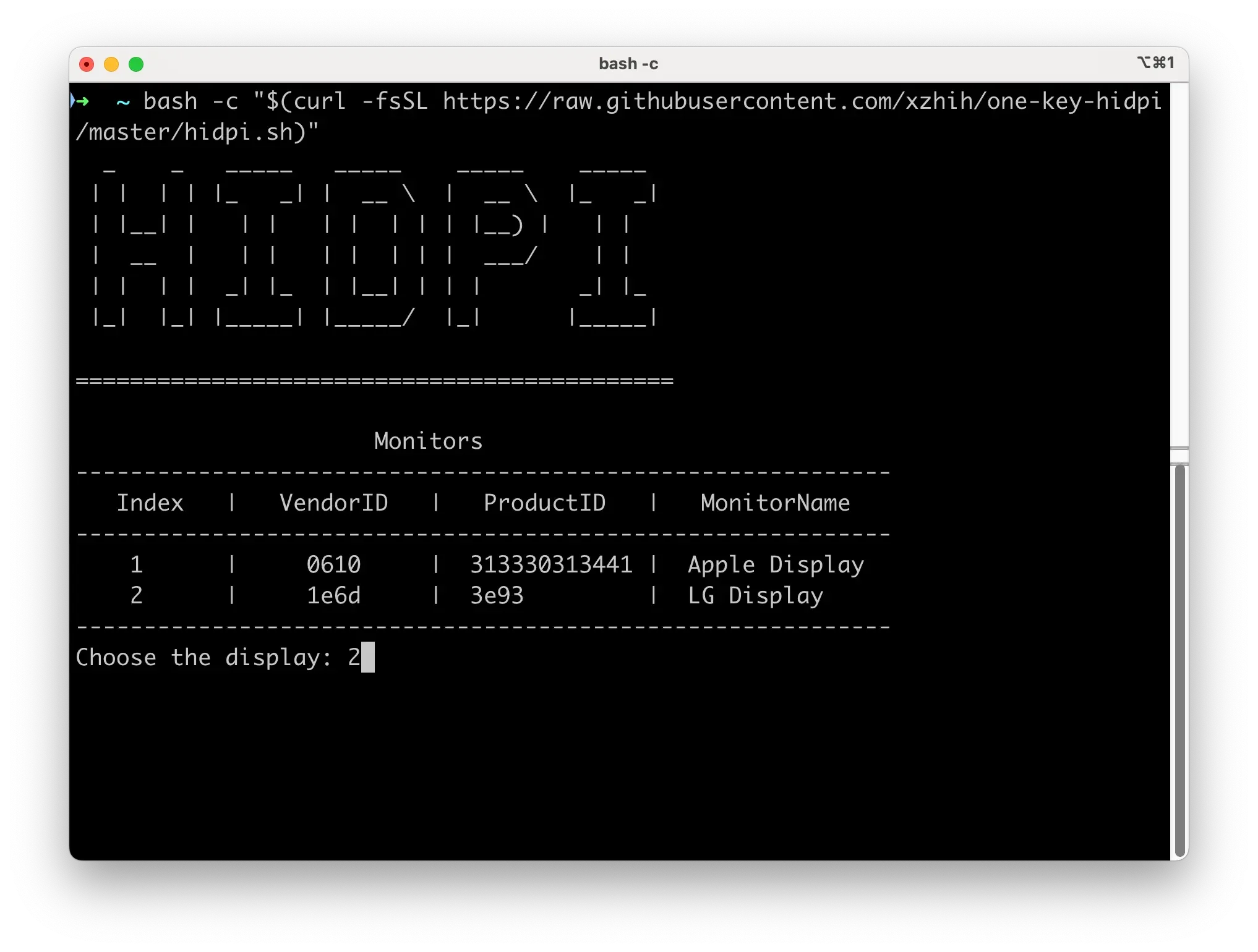
Sometimes at this step, it may ask for a password. Enter your MacBook login password.
Step 2#
This step is where you choose whether to enable HiDPI or not. Obviously, select option 1.
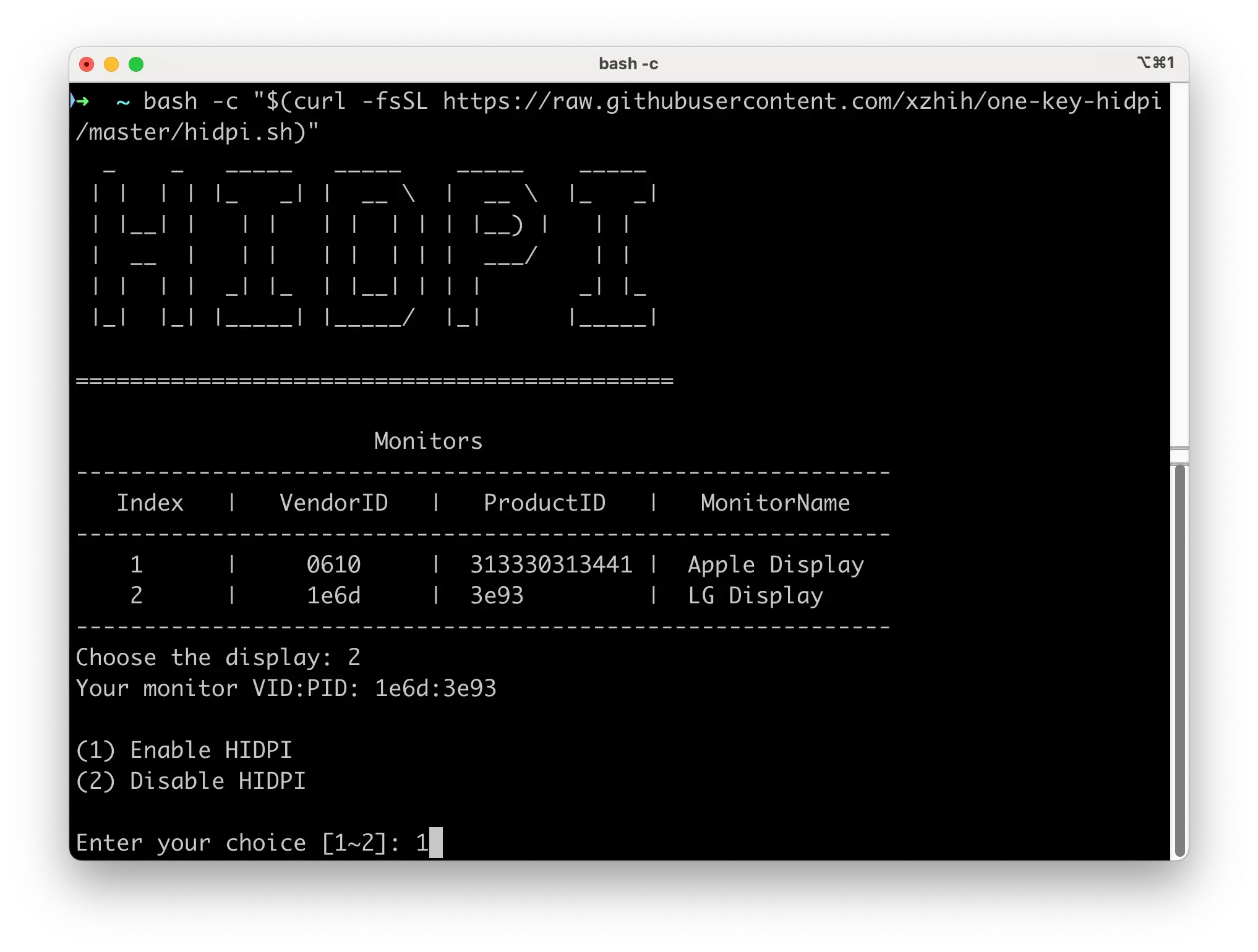
However, if you've completed all the steps but want to revert, run the program again and select option 2 to remove it.
I deleted and re-tested the HiDPI settings multiple times. Some resolutions didn't work for certain monitors. When you select option 2 and press Enter, it asks whether to delete or restore to the default macOS monitor settings — I chose option 1. If you're deleting, it deletes and the program exits. Then just reboot.
Step 3#
Choose the display icon. For the typical case, make sure to press 6 and move to the next step. Either at Step 1 or this step, it'll ask for your password, so enter it and press Enter.
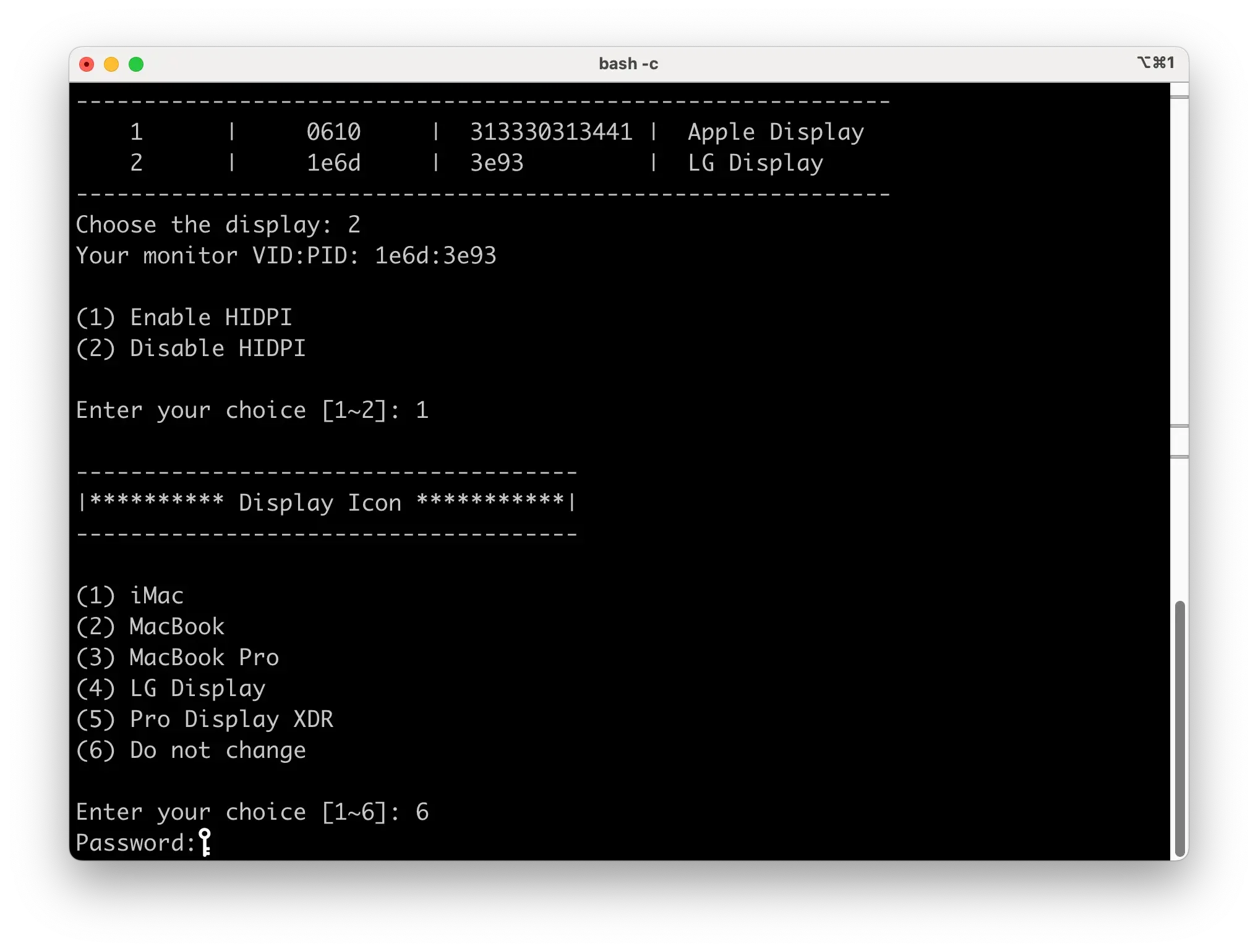
If you want to change the images shown for each monitor in Settings > Display, press 1-5. To revert, you'll need to remember what the original image was. So let's try not to touch this. The image sometimes broke when switching to a different icon.
I accidentally selected option 4 because the LG Gram View is made by LG — the image broke and I thought my computer was broken.
Step 4#
Choose the resolution you want. I tested this step multiple times, deleting and reconfiguring settings. If the resolution you want is among options 1-6, apply it and reboot. Then if you go to Display settings, you should see several resolutions with "(HiDPI)" text added.
If the resolution you want isn't among options 1-6, press 7 to manually add it. Enter the {width}x{height} value and press Enter. Then reboot.
My guess is that it only adds a few supported resolutions from the smallest up to the resolution you specified.
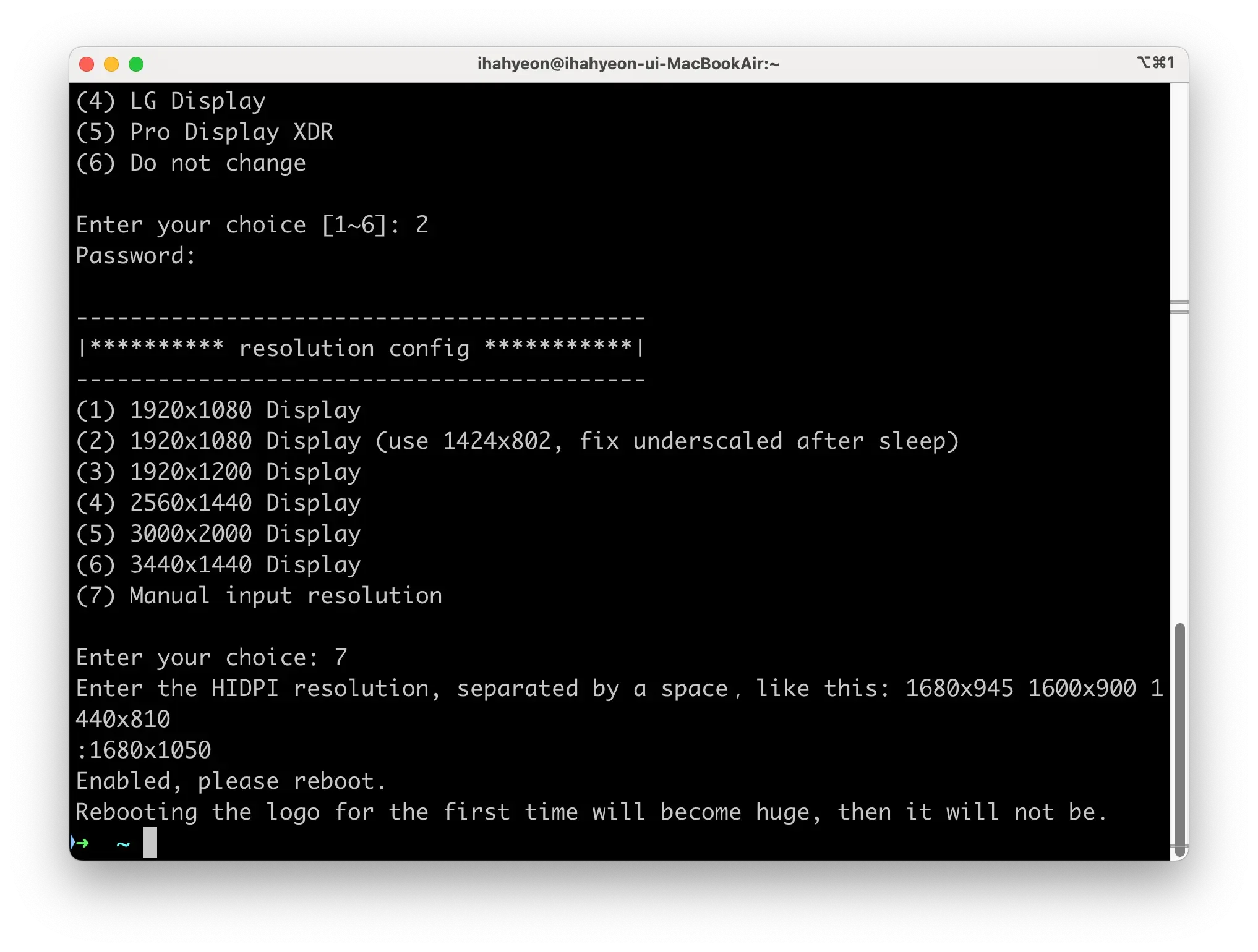
I'm not sure of the exact reason, but when selecting option 7, there were cases where the resolution didn't apply even after entering a value and rebooting. Initially, I entered 1680x1200 or 1680x1050 for the LG Gram View resolution via option 7 and rebooted, but the settings didn't apply. If you're using the LG Gram View, press 7 and enter 1680x1050 or 1600x1000.
Also, if you press 7 and try to add multiple resolutions separated by spaces, it seems like a bug — it throws a sh error and doesn't apply. So you need to enter only a single value after pressing 7.
This program doesn't seem to be well-maintained enough to handle bugs at this point.
Your Settings > Display should look something like this:
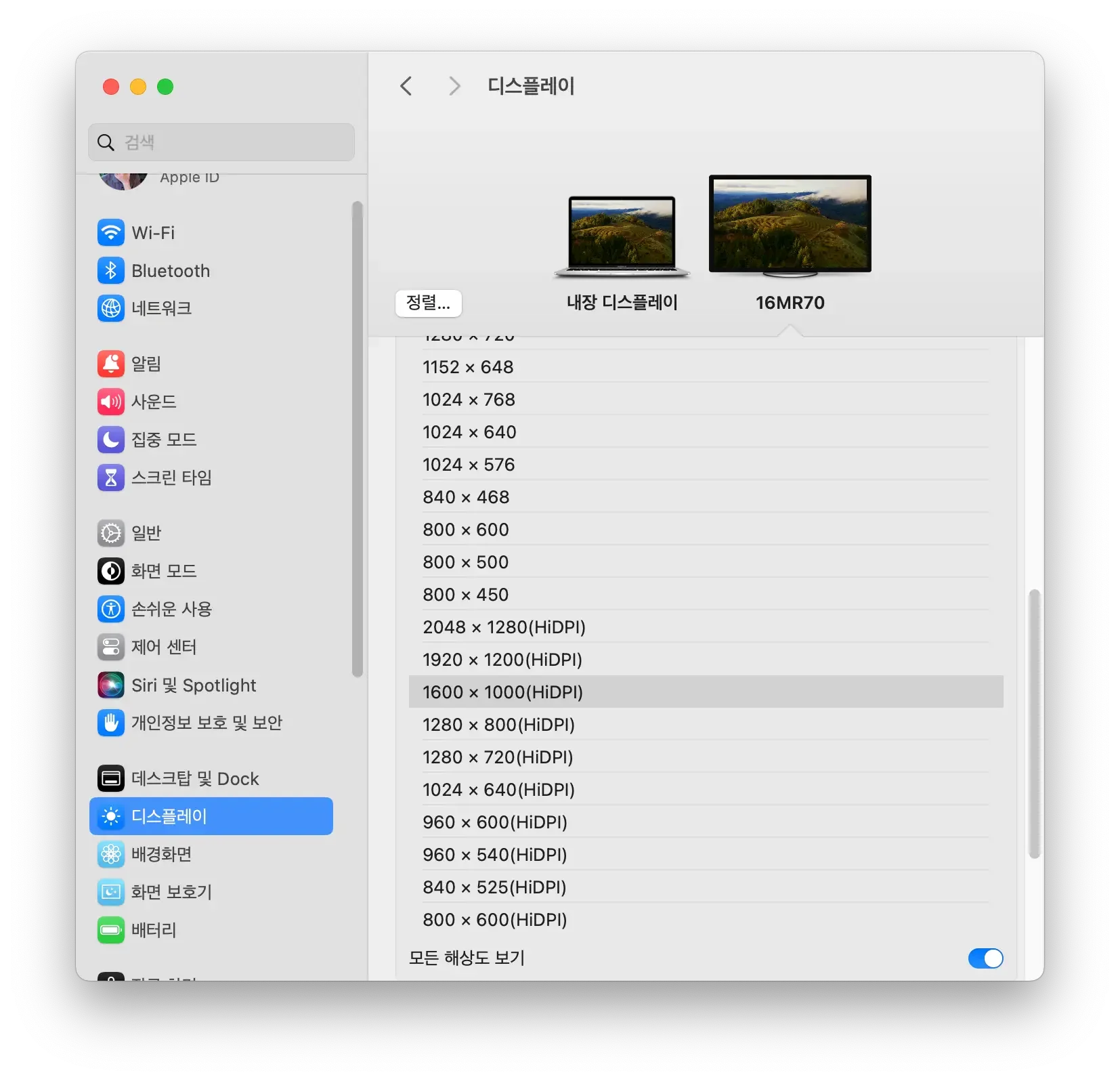
Now enjoy your crisp screen!
Not every difficult and dangerous thing is suitable for training, but only that which is conducive to success in achieving the object of our effort.
— Epictetus