
I was looking for Flutter projects on GitHub to learn about clean architecture by studying other people's projects, and I found a good one. But after cloning it with git clone and trying to run the project on the iOS simulator, it didn't work right away. I'm going to write about how I fixed this and got the project running.
First, I'm going to clone a project called clean_architecture_todo_app. Open your terminal and run the following command in your desired location.
git clone https://github.com/rodydavis/clean_architecture_todo_app.gitThen open the project in VS Code, open main.dart, and press F5 to start debugging. You'll likely see an error message similar to this.
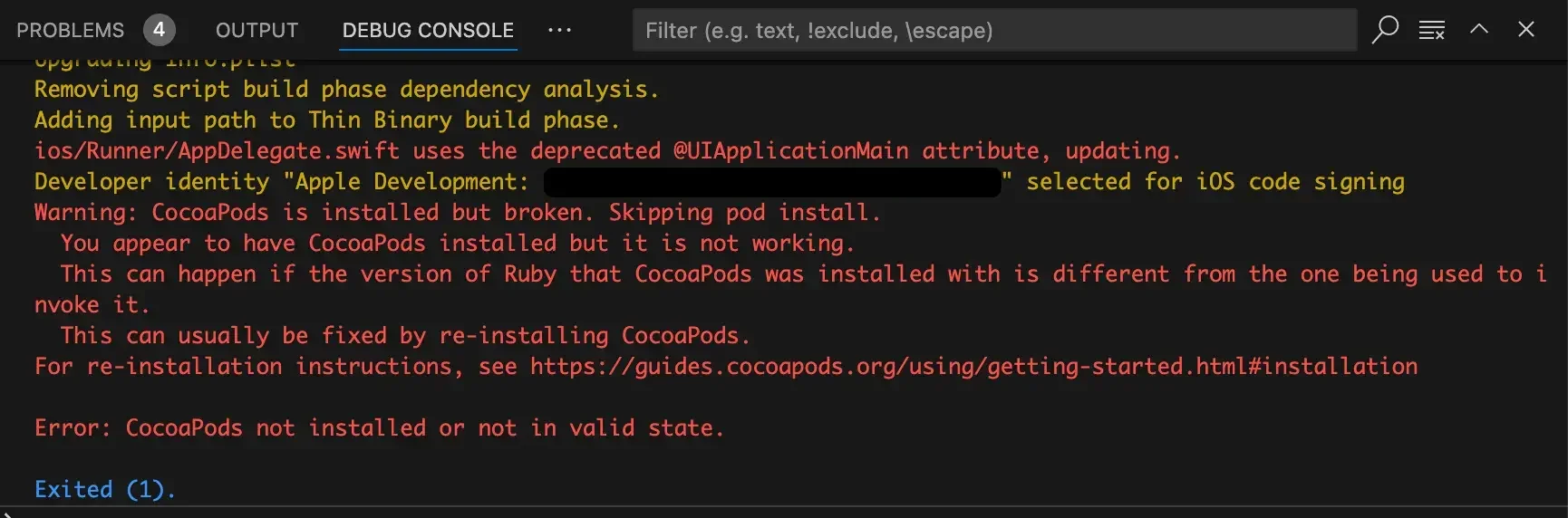
I use rbenv. I entered the command rbenv local 3.2.2 in the root project directory. This creates a .ruby-version file in the root project. This part isn't strictly required, but since I'm on macOS and the built-in Ruby version is 2, I needed version 3 or higher, so I applied it.
Navigate to the ios folder from the root project. Run the pod install command. It should proceed like this:
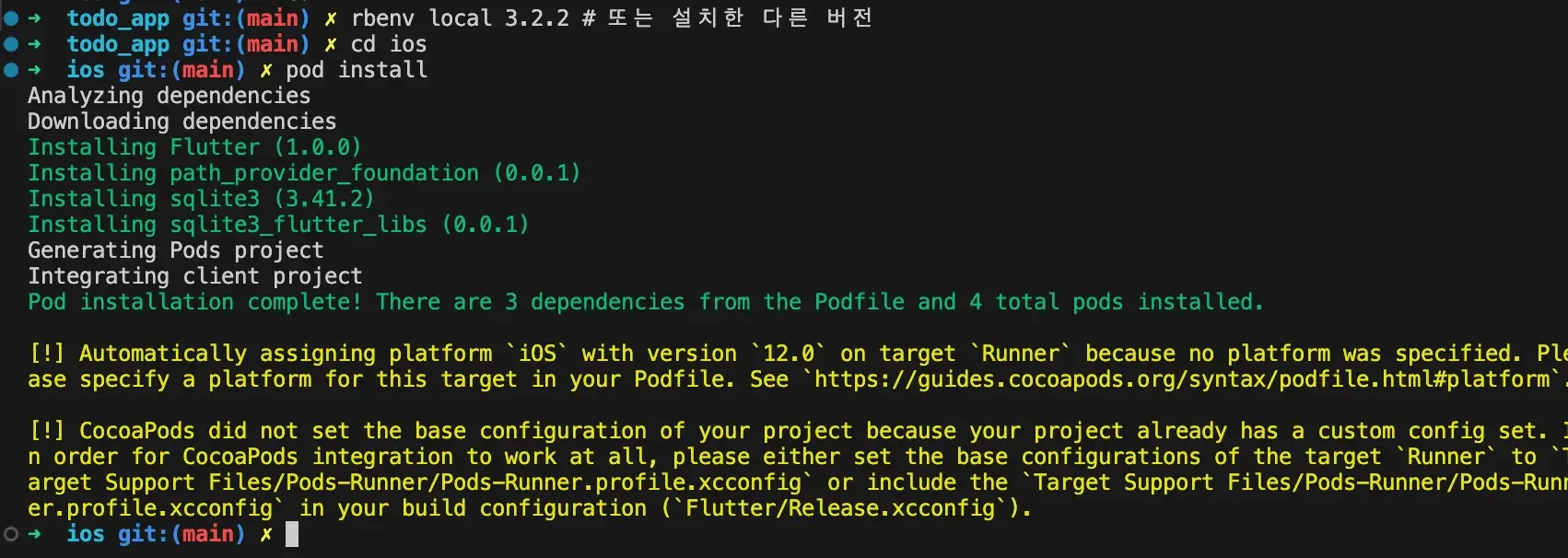
You'd think it would work now after running pod install, but when you run in debug mode, you'll see a lot of version issues under the .pub-cache folder like this:
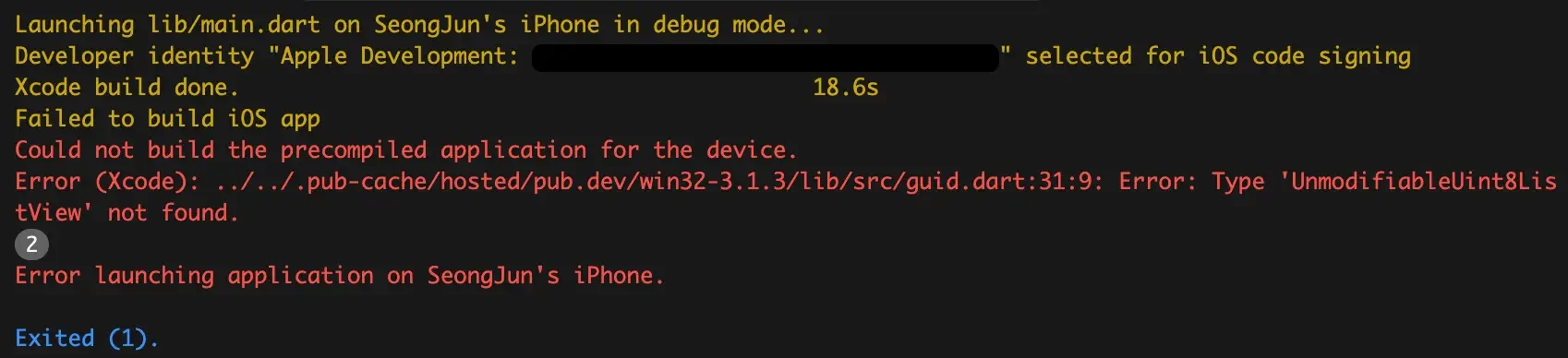
This problem is basically the whole reason I wrote this post. The solution is simple, but finding the right approach was surprisingly tricky.
First, navigate to the root project and run the flutter pub upgrade command. This will update the pubspec.lock file to versions that are compatible with your local environment.
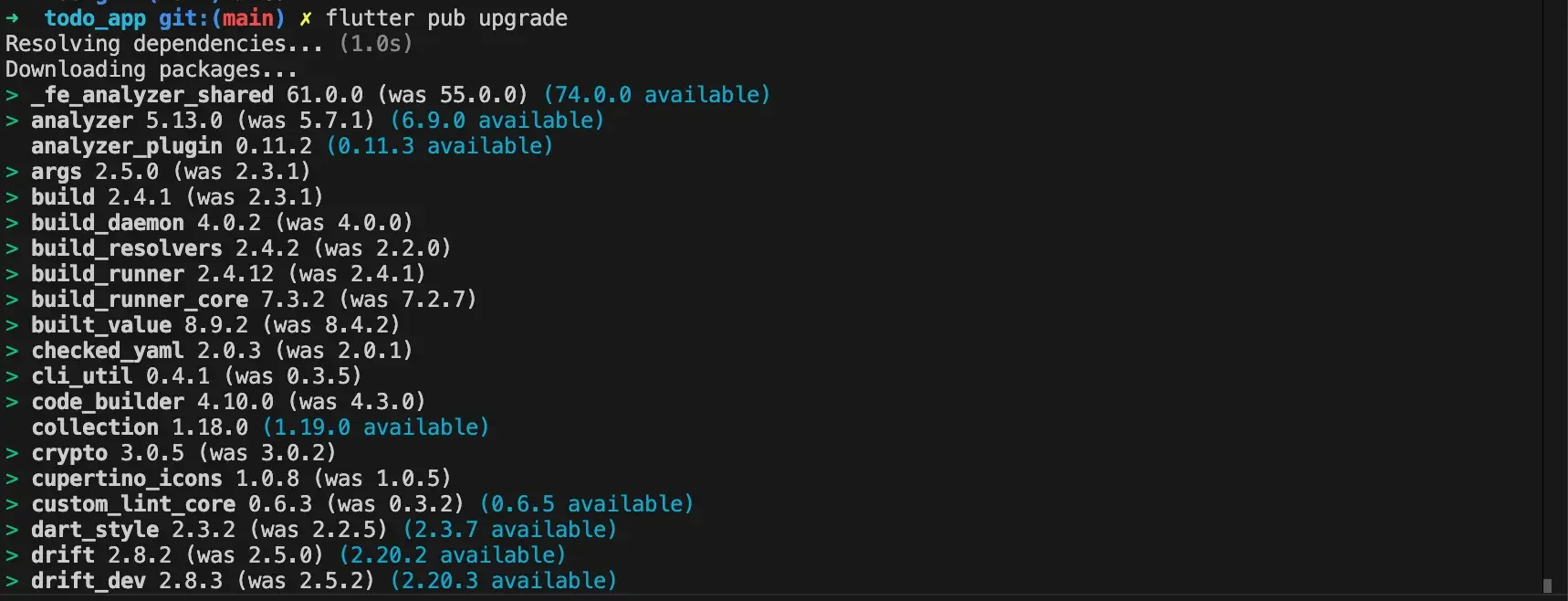
But if you try running in debug mode again, you'll get an error on the Ruby side this time. My guess was that the CocoaPods dependency versions also needed to be updated.
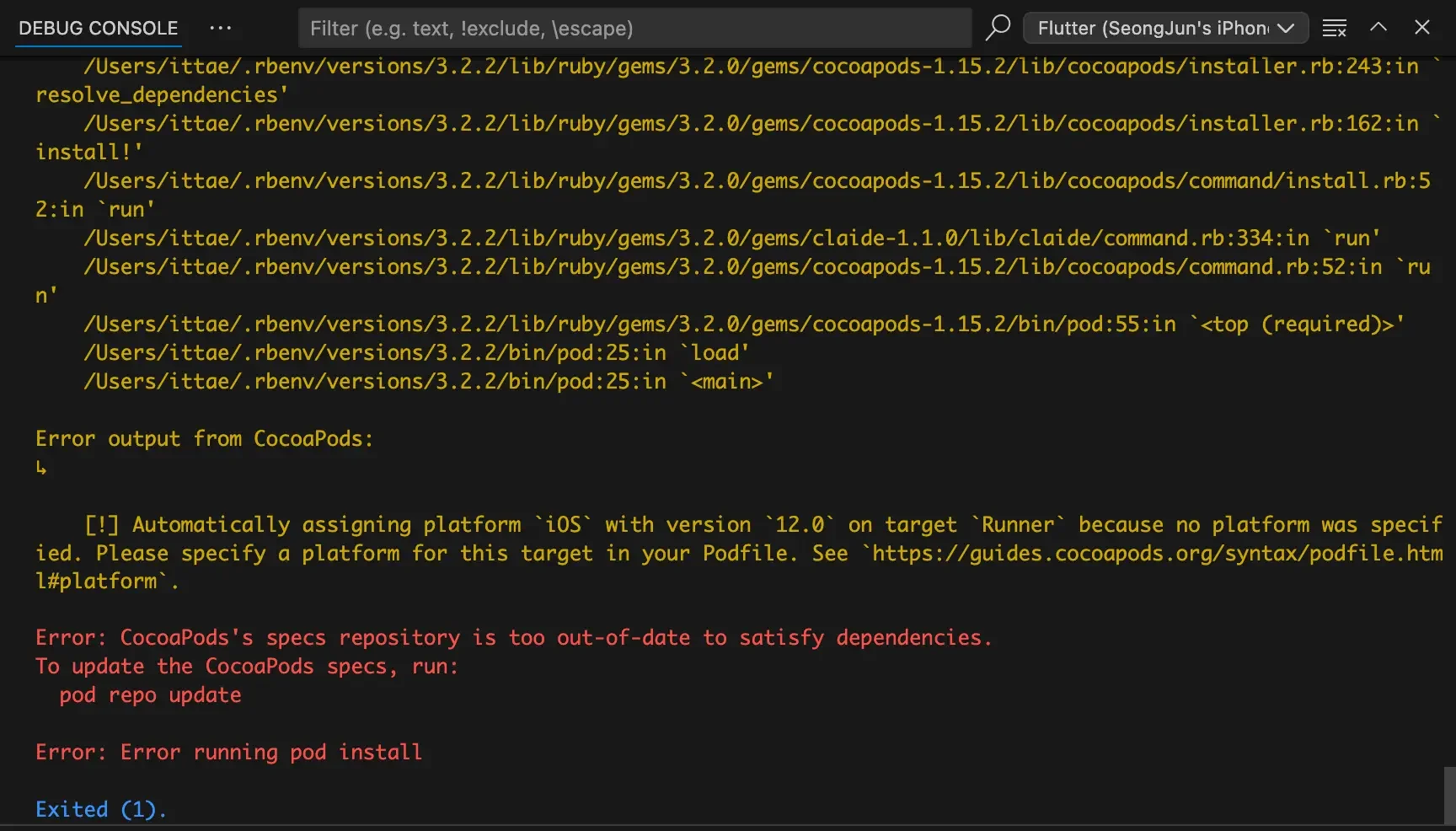
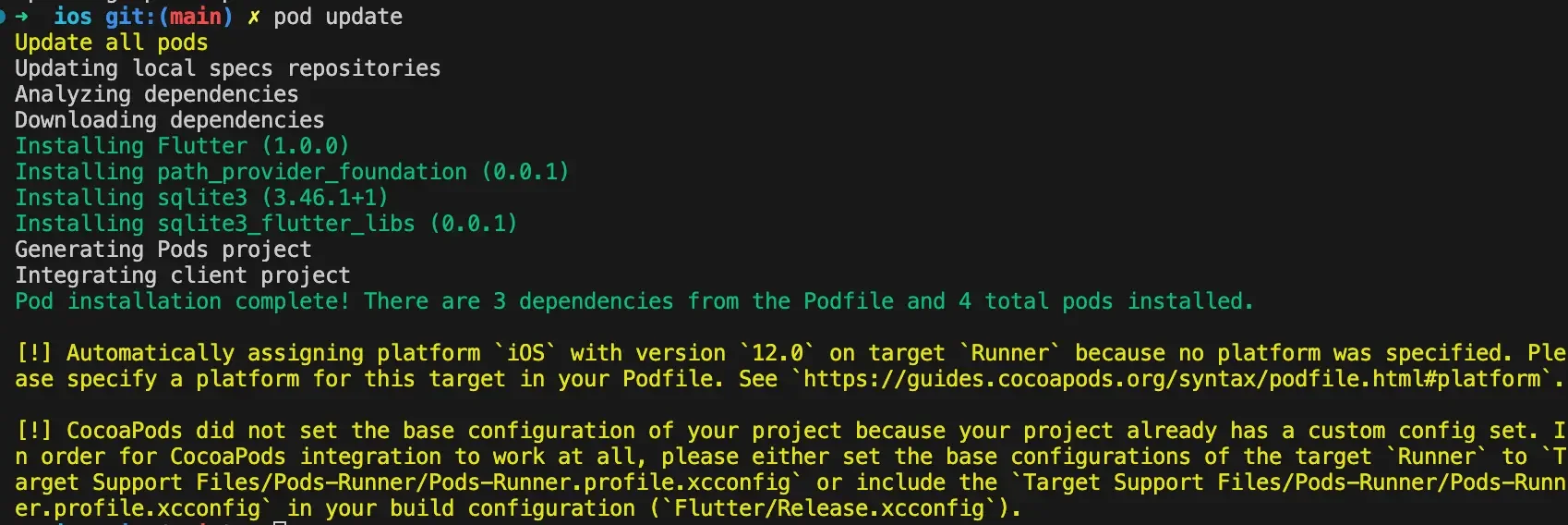
Go back into the ios folder, and after running pod repo update, if you try debug mode again, you'll get the same error. Instead, run pod update. Then packages will be installed like this:
And if you run debug mode again, it should work!
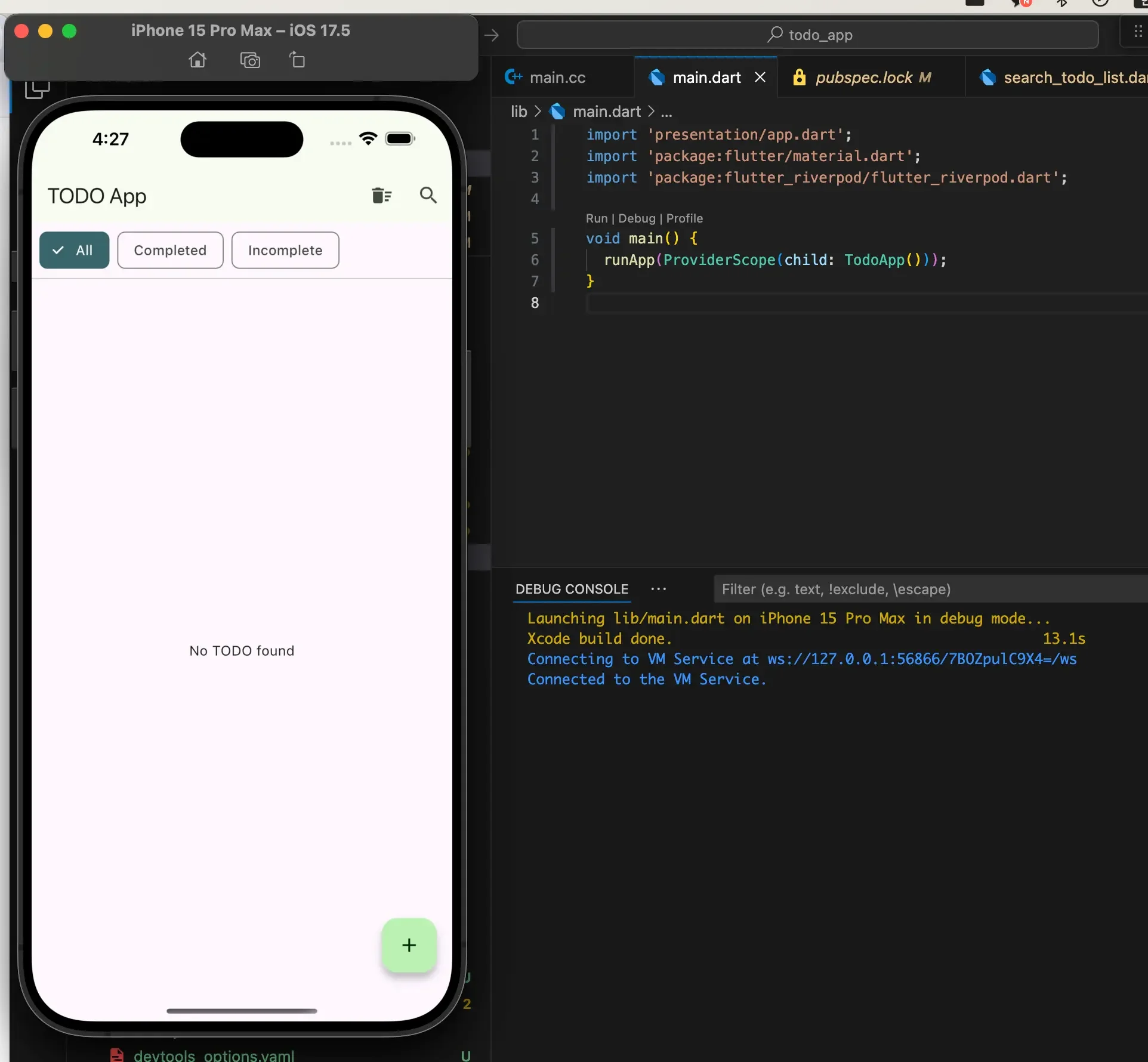
It's so simple once you know the solution, but it took a lot of trial and error to figure out the right commands to run...
At least it worked out in the end!
Change happens when the pain of holding on becomes greater than the fear of letting go.
— Spencer Johnson