
I've always been running Flutter projects through the Simulator. When I got a new keyboard and connected it to my M1 via Bluetooth, I also had my mouse and headset connected wirelessly, which caused a lot of lag — so I needed a dongle for the keyboard. I bought a USB hub from AliExpress to plug in the keyboard dongle, and since it also had a few Type-C ports, I thought it'd be great to connect my iPhone and develop on it.
Enabling Developer Mode on iPhone#
I already had a few Type-C to 8-pin cables, so I connected right away, approved trusting the computer on my iPhone, and set the run device to my iPhone in VS Code.
But I got the following warning message and it wouldn't run.

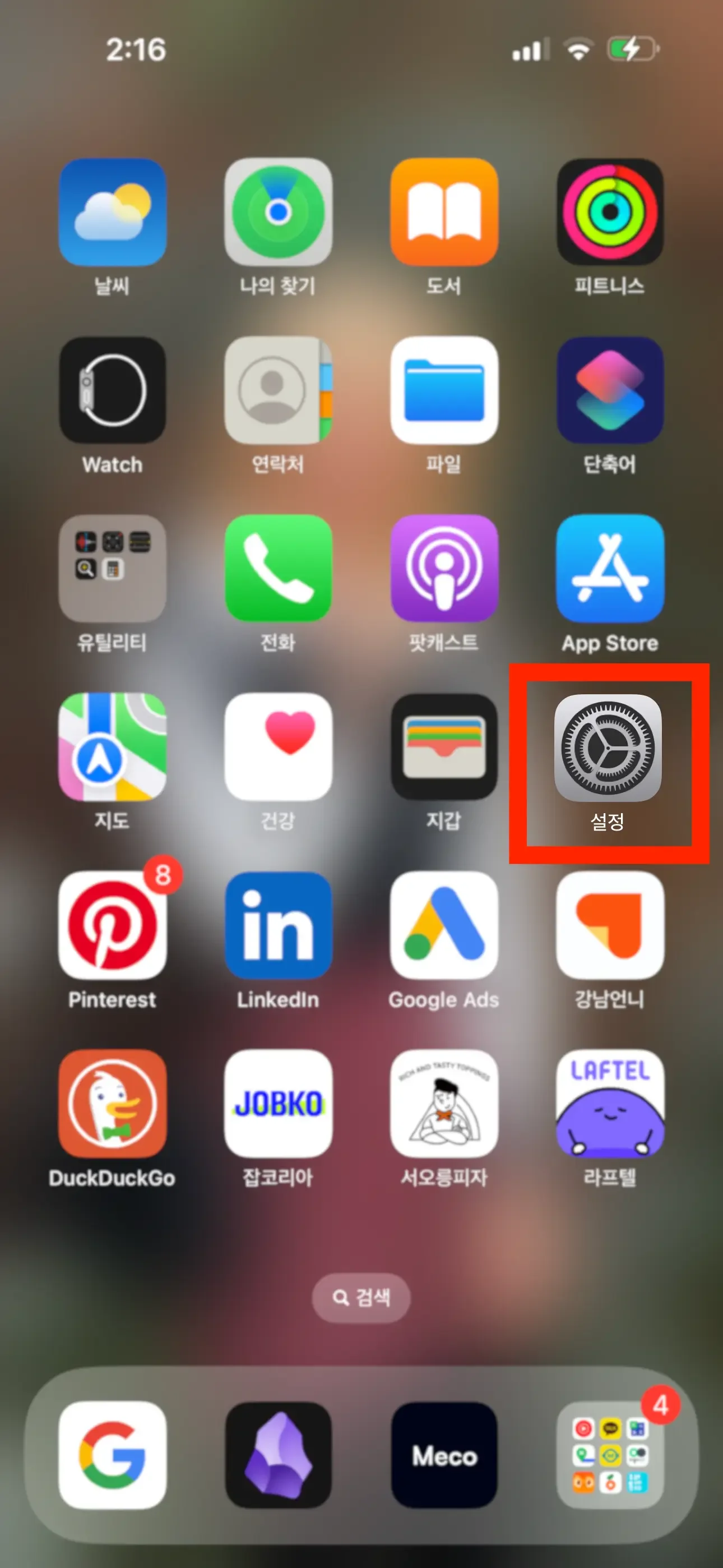
The instructions said to enable Developer Mode in Settings under Privacy & Security. Open the Settings app and select Privacy & Security.
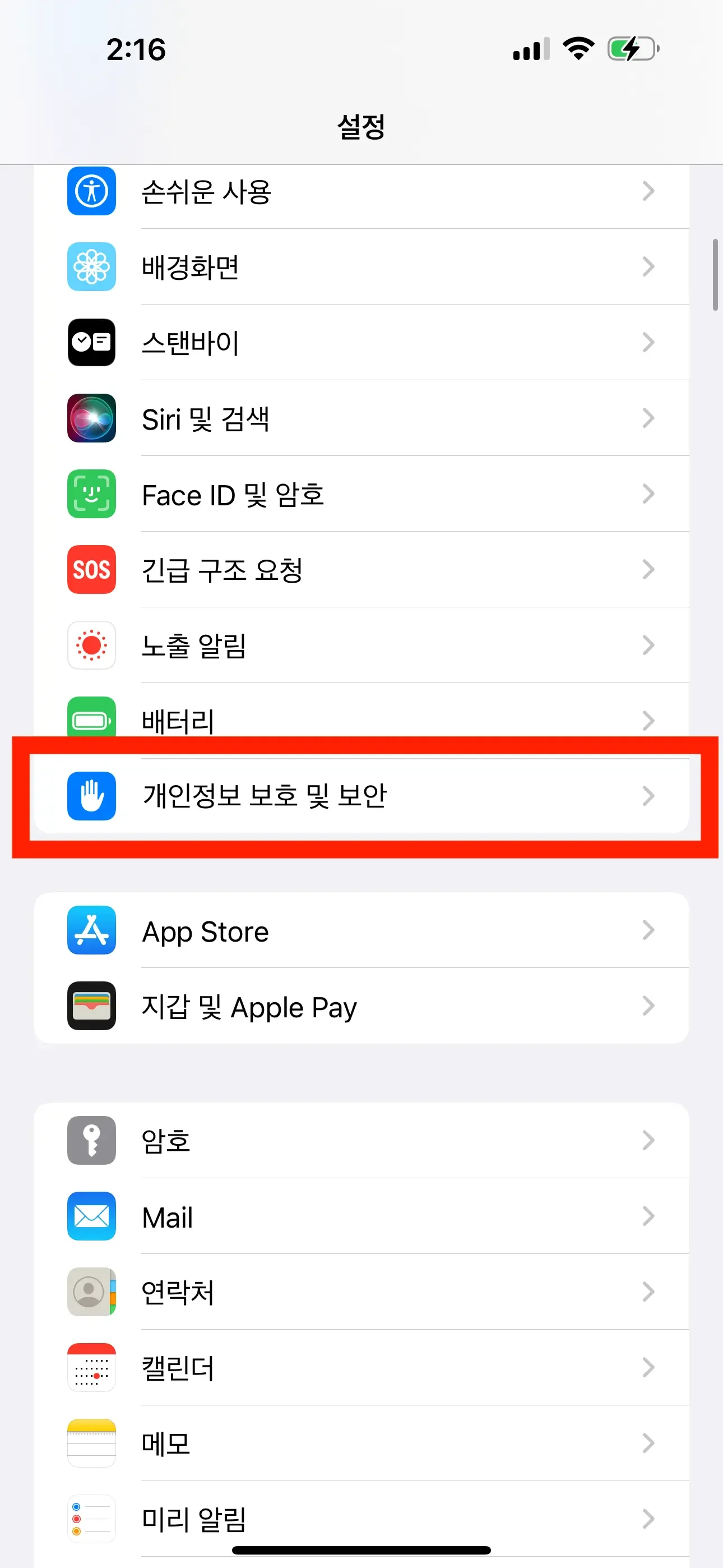
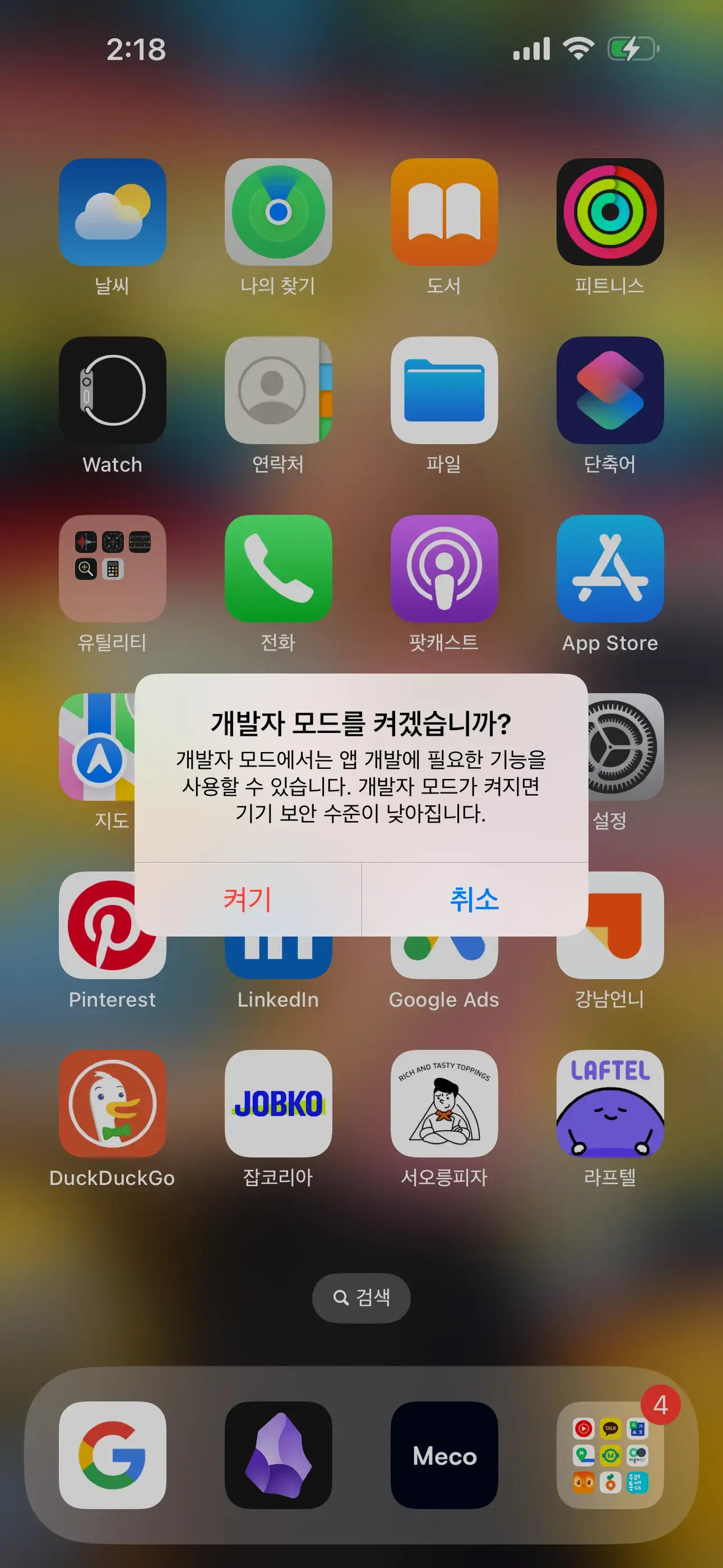
After entering Privacy & Security, scroll all the way down. You'll see Developer Mode. Mine was set to "Off."
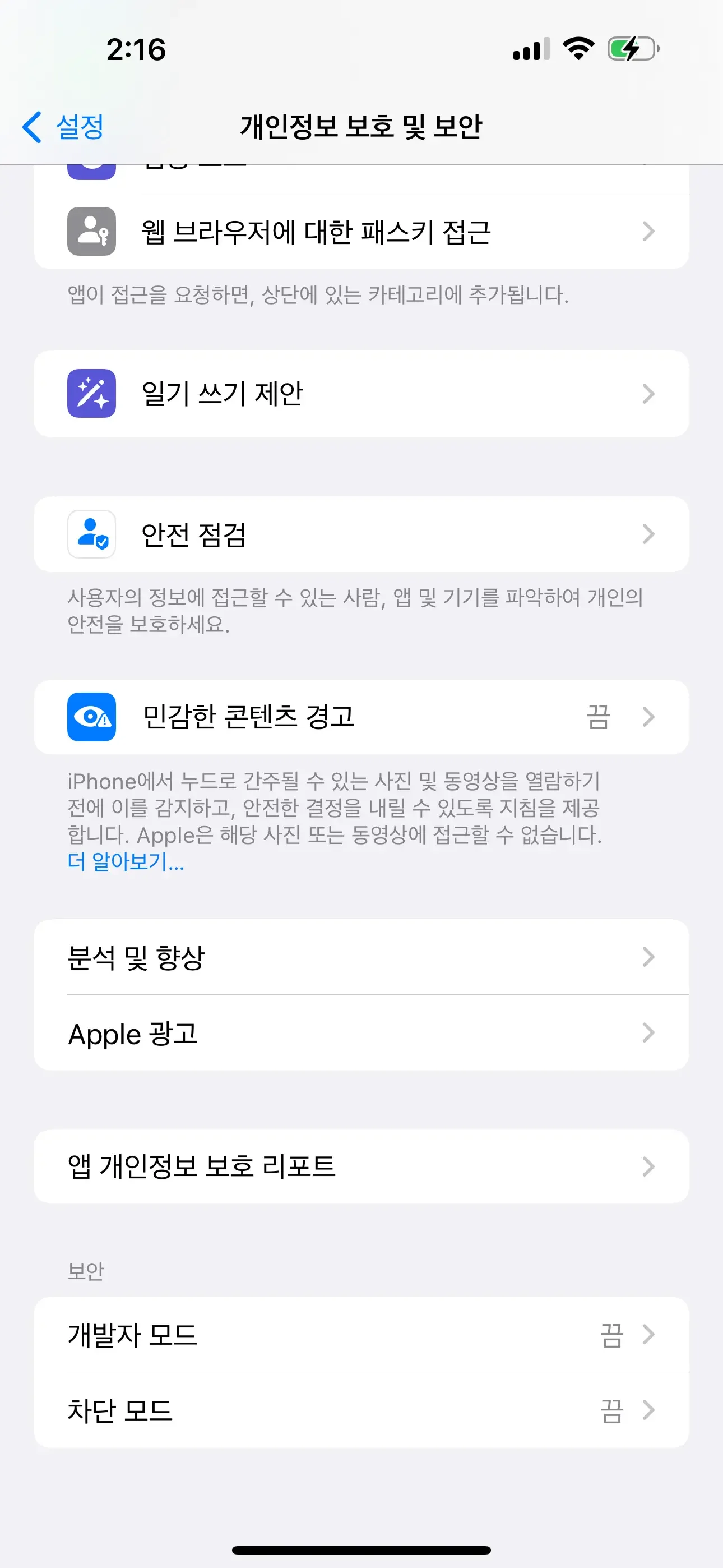
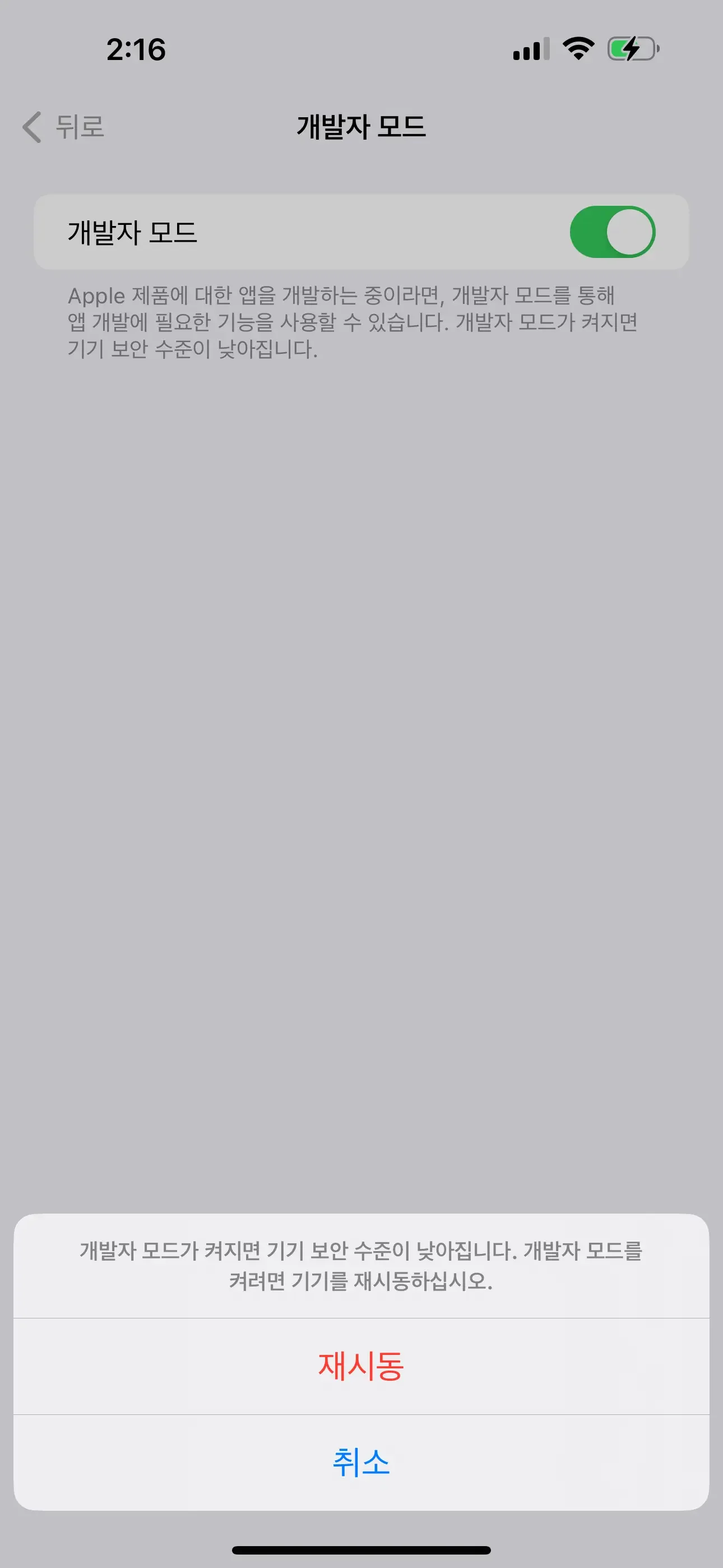
Turn on Developer Mode and restart. After unlocking from the lock screen to the home screen, you'll get another prompt asking if you want to enable it. If you accidentally tapped Cancel and still need Developer Mode, just go back into Privacy & Security and try again.
I thought "surely it'll work now" and tried running it, but got the following message and it still wouldn't run. This issue was because I was trying to run the app without signing it.
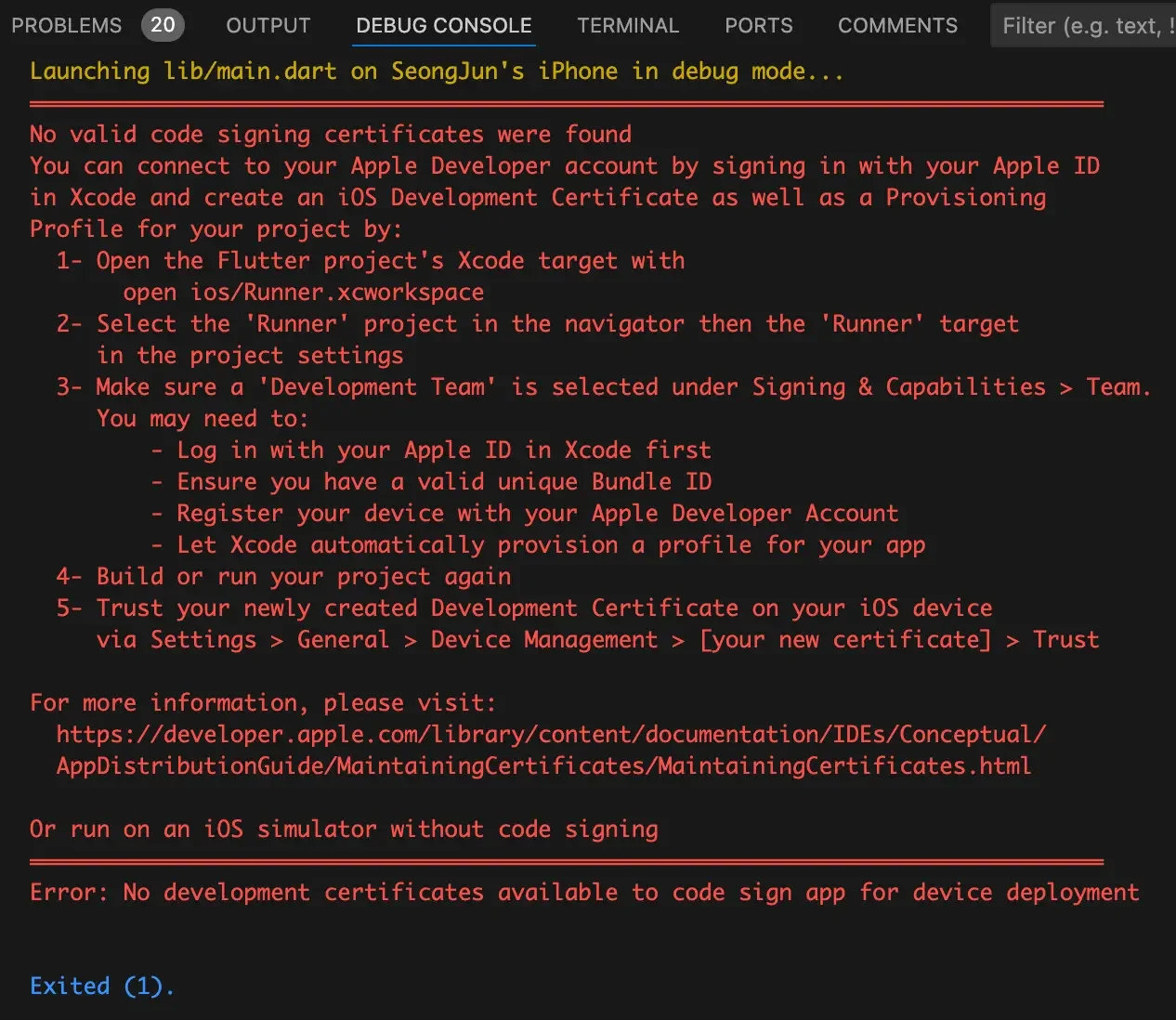
Signing the Project#
Let's follow these instructions. If you're in the project root in your terminal, open Xcode with the command open ios/Runner.xcworkspace.
Select Runner from the left sidebar. If Runner isn't visible, it means the blue folder above Runner isn't selected.
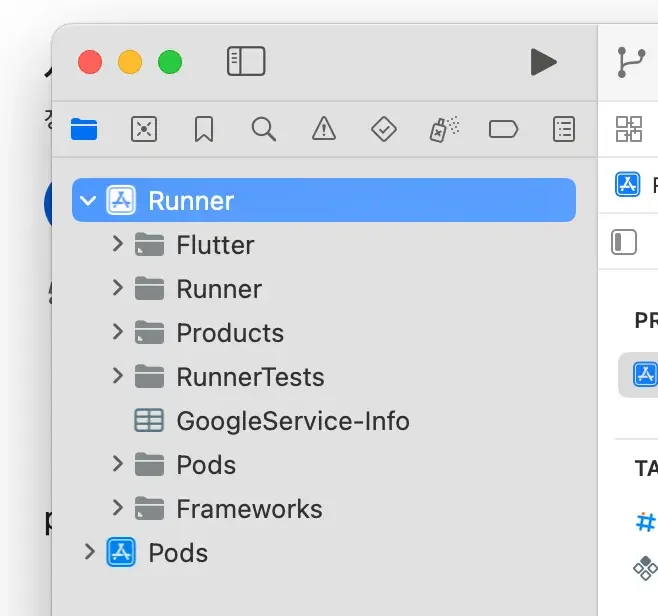
You'll see Runner under both Project and Targets. Select Runner under Targets.
Then select Signing & Capabilities. Your Team is probably set to None like mine was.
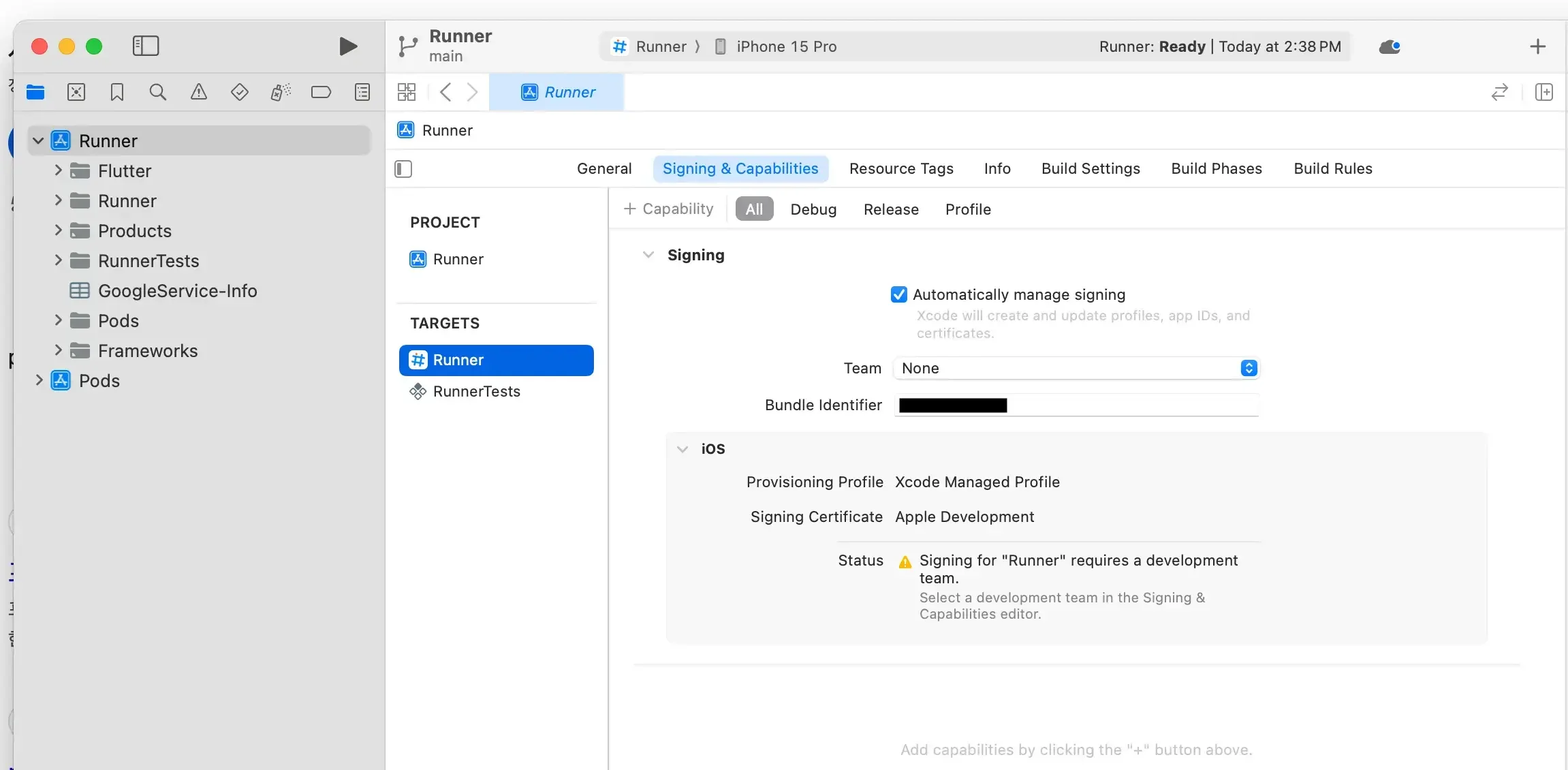
I selected my personal Apple account, and a Sign In button appeared below. I clicked it and entered my password.
I thought "surely it'll work now" and tried running it, but yet another issue came up.
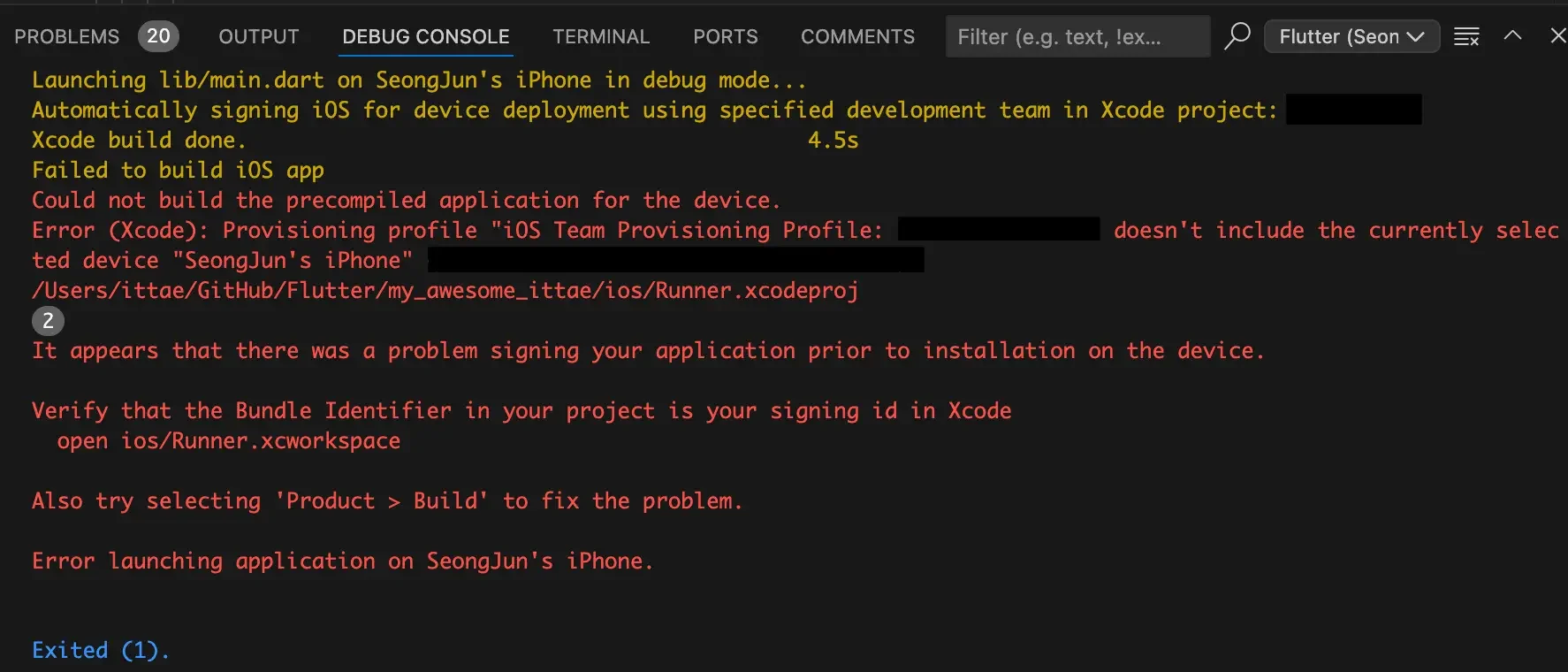
Applying the Keychain#
If the project is closed in Xcode, reopen it. Then select Runner > your iPhone from the top. You'll need to build, so click the play icon (➡️) in the top left.
After a short wait, it asked for a keychain password. I tried my iPhone password, Mac password, and Apple account password — all wrong. On a whim, I cleared the field and hit OK, and it went through.
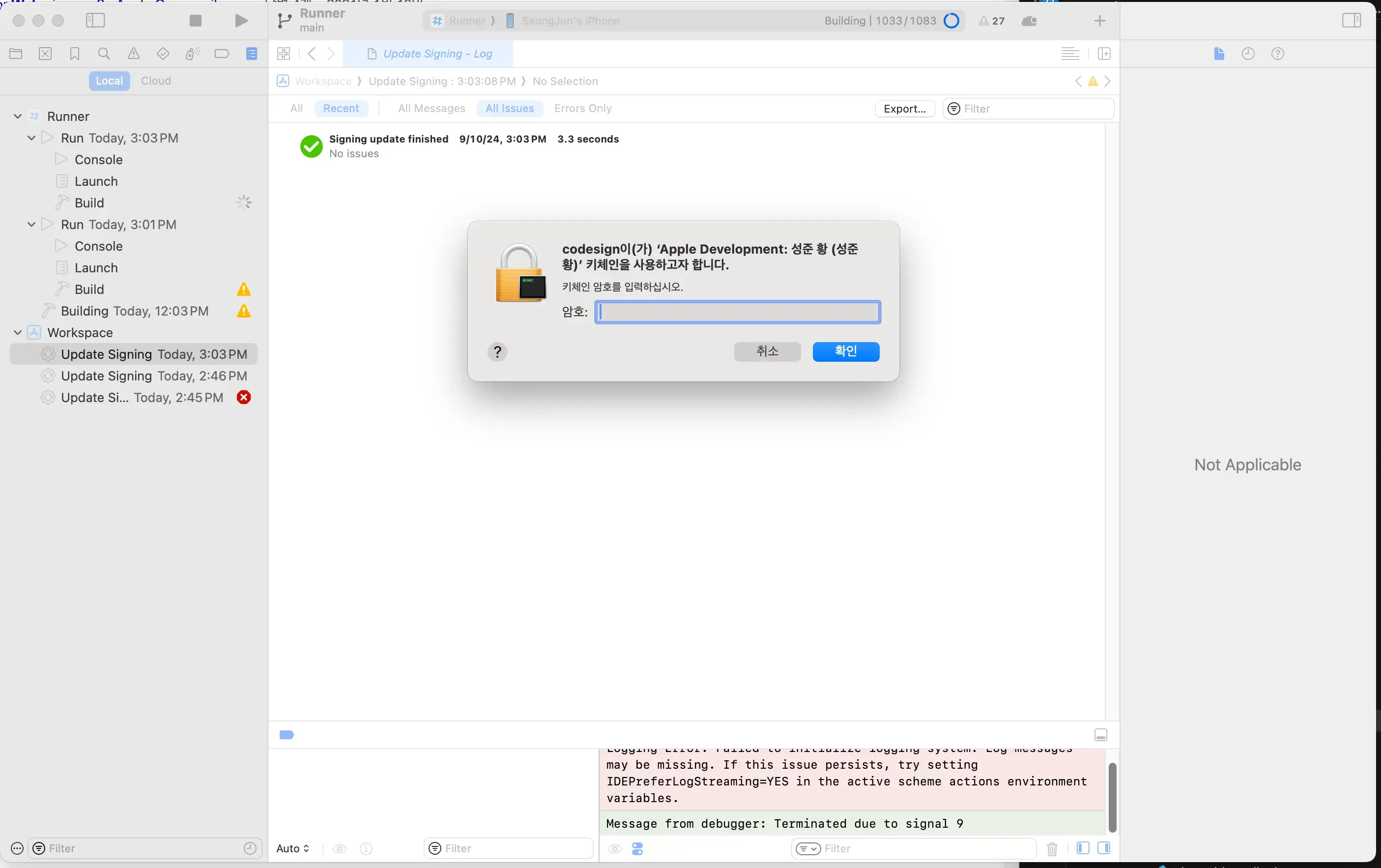
Some warning messages appeared in both Xcode and on my iPhone, and it still wouldn't run.
The app was installed on my iPhone, but it wouldn't launch — tapping it just showed a warning message.
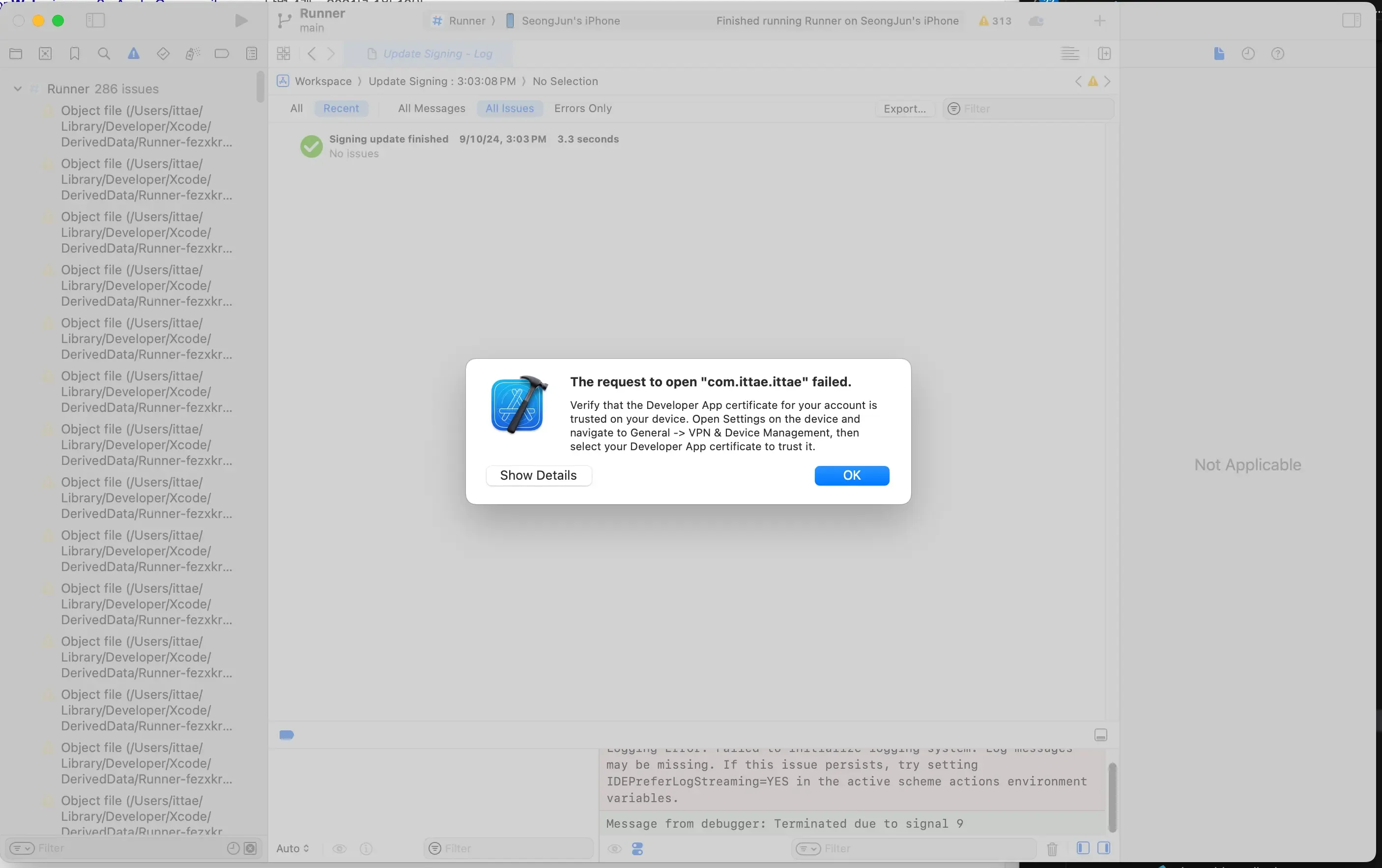
Trusting the App on iPhone#
Go to Settings -> General -> VPN & Device Management. Under Developer App, you'll see your Xcode login account showing as untrusted. Tap on it.
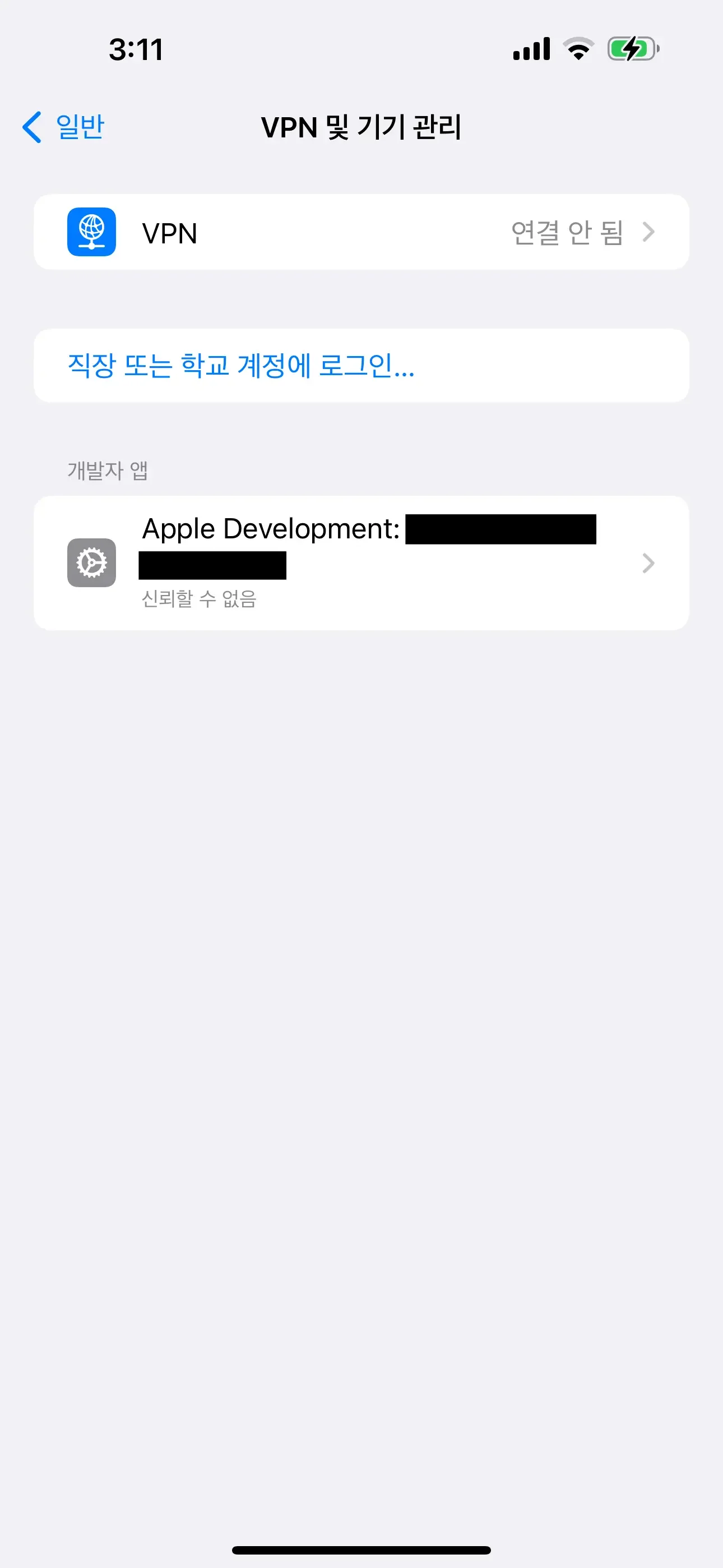
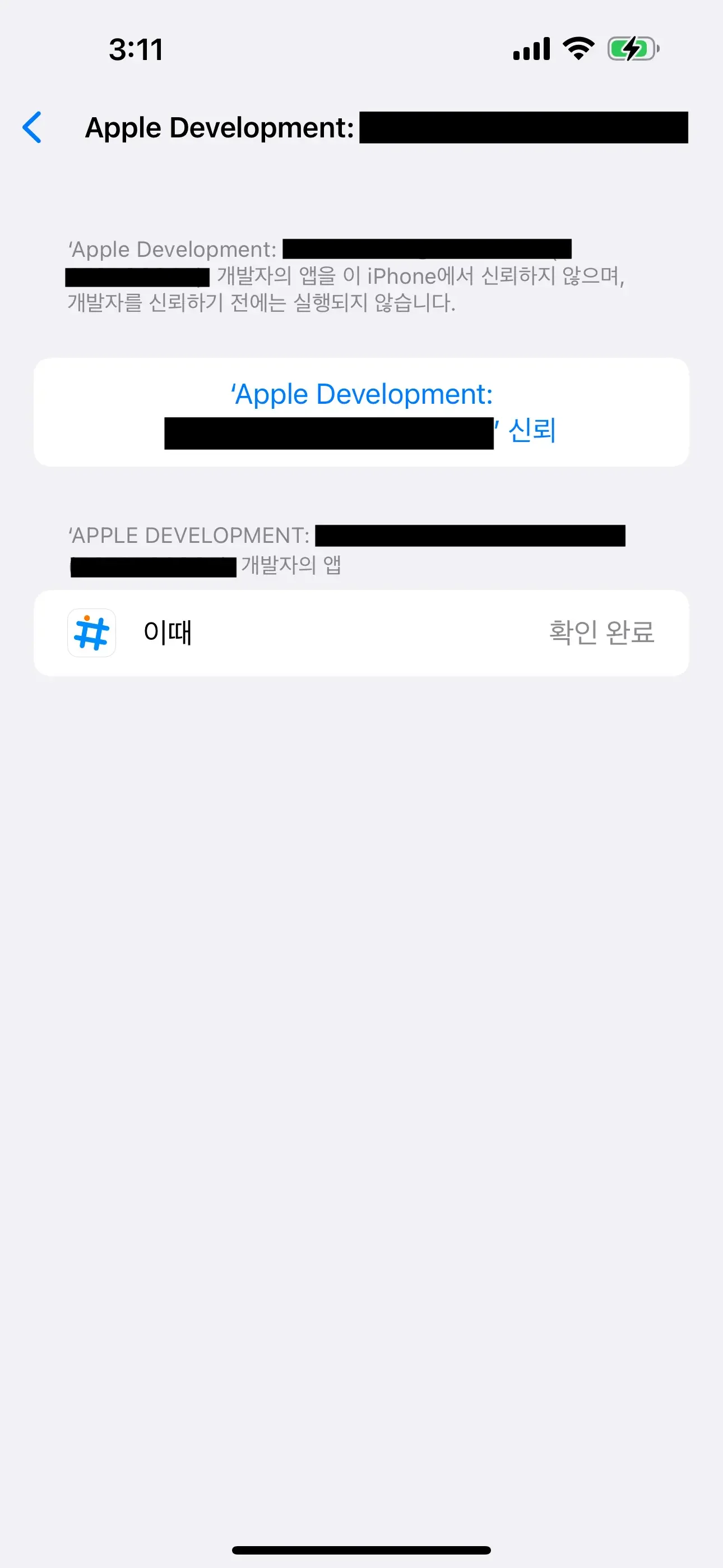
On the next screen, there's a Trust button at the top. Tap it, then select the red "Trust" text on the right side of the modal that appears.
Then go back to Xcode and build again by clicking the play icon (➡️) in the top left.
It should run normally now. After that, running from VS Code should work fine too!
When running from VS Code for the first time, it'll ask for permission to control Xcode — just allow it.
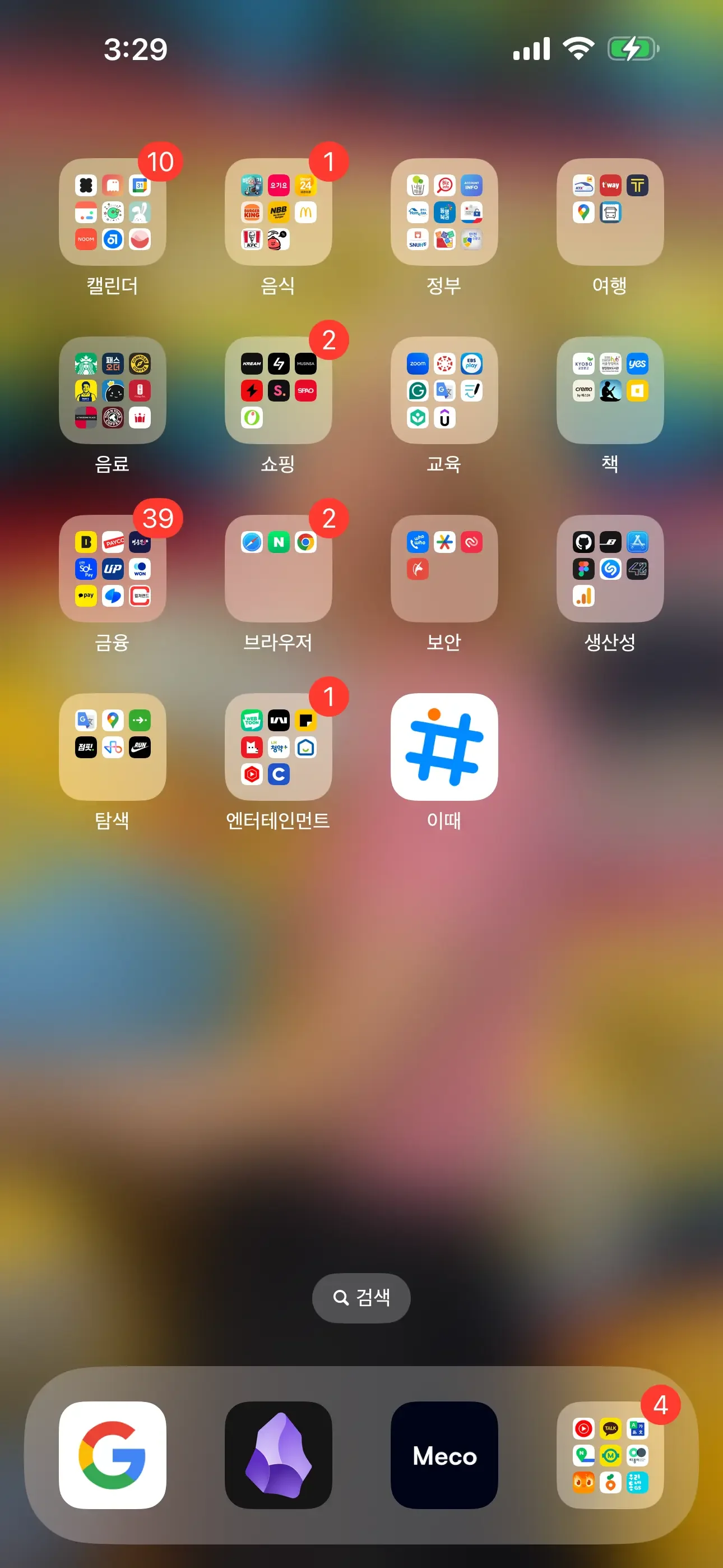
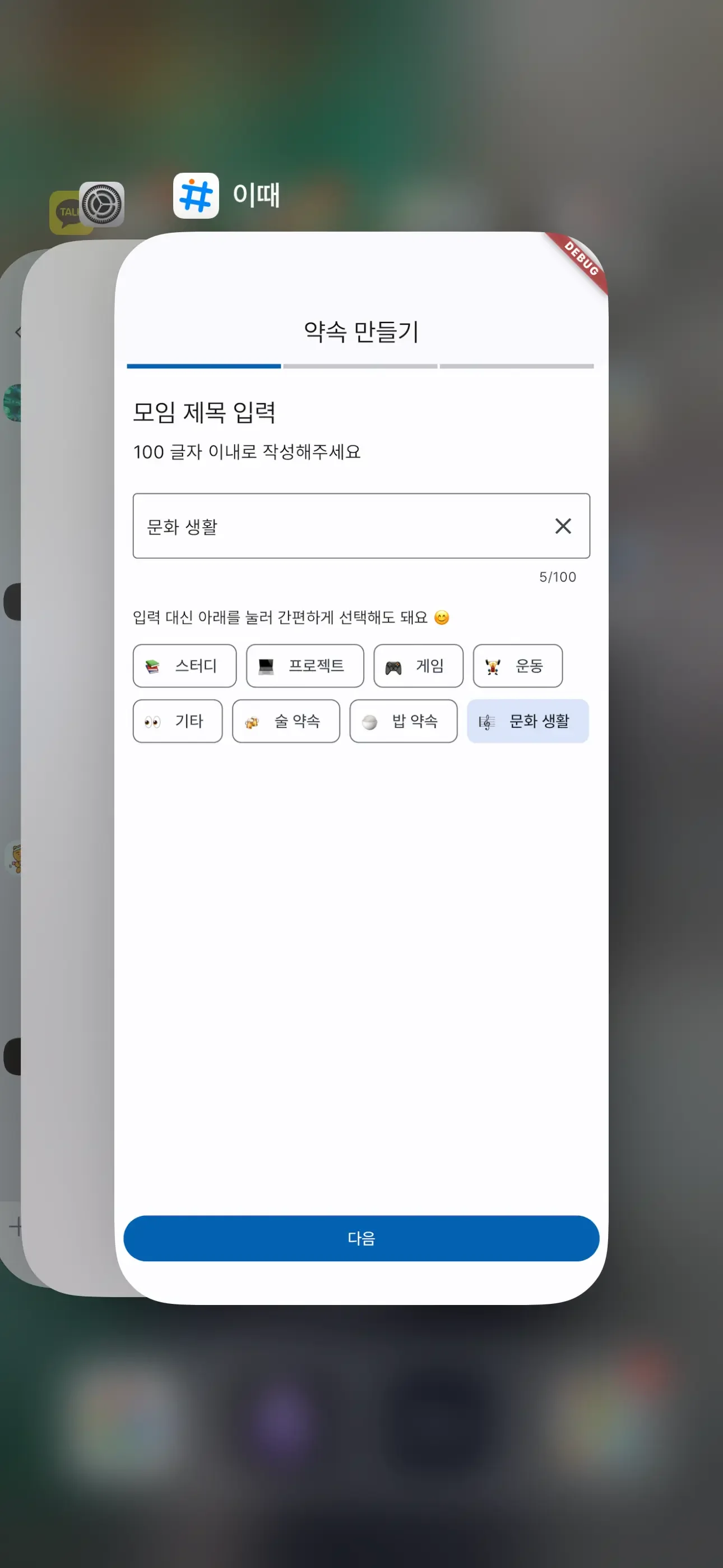
I can confirm that the installation and launch went smoothly! 😎
This Might Help Too..#
Issue navigator
Something I ran into while doing all this — when you open a Flutter project in Xcode, the Issue navigator will show a ton of warnings. I had about 300. I'd recommend not changing them, but if you must, check first, back up, or commit beforehand.
I initially applied the fixes without thinking, assuming they were helpful improvements like dart fix, but after that nothing worked anymore.
I went into the ios folder and ran pod install --repo-update to revert things.
Skipping codesign password prompt
Every time I ran the project on iPhone, a codesign password prompt would pop up. It was fine at first, but entering it every time got really annoying, so I looked for a solution.
I thought I'd need to configure something on the iPhone, but turns out it's a setting on the computer you're using.
First, open the Keychain Access app.
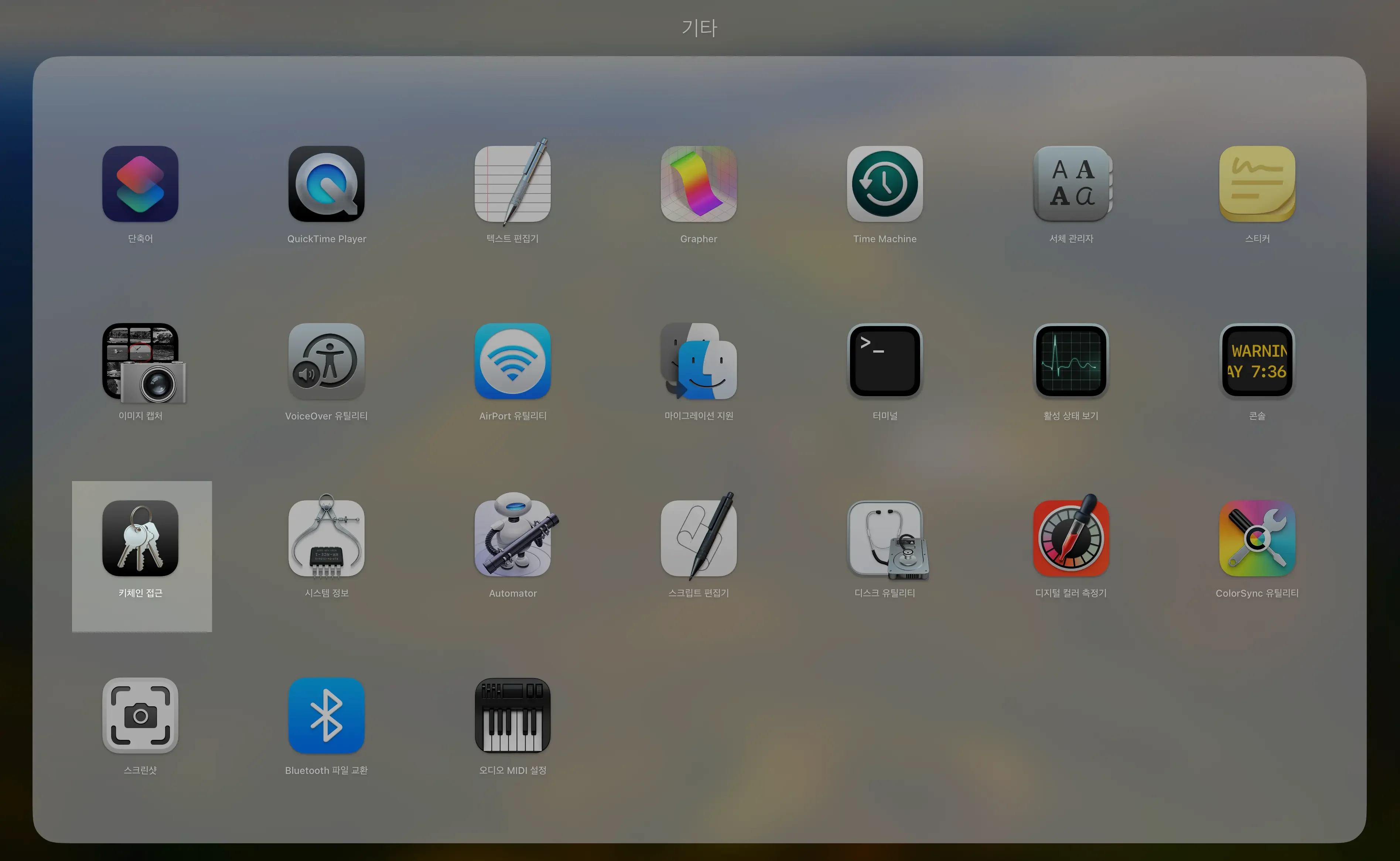
It'll ask whether to open Passwords or Keychains — instead of the blue button, click the second option (the gray button) in the list.
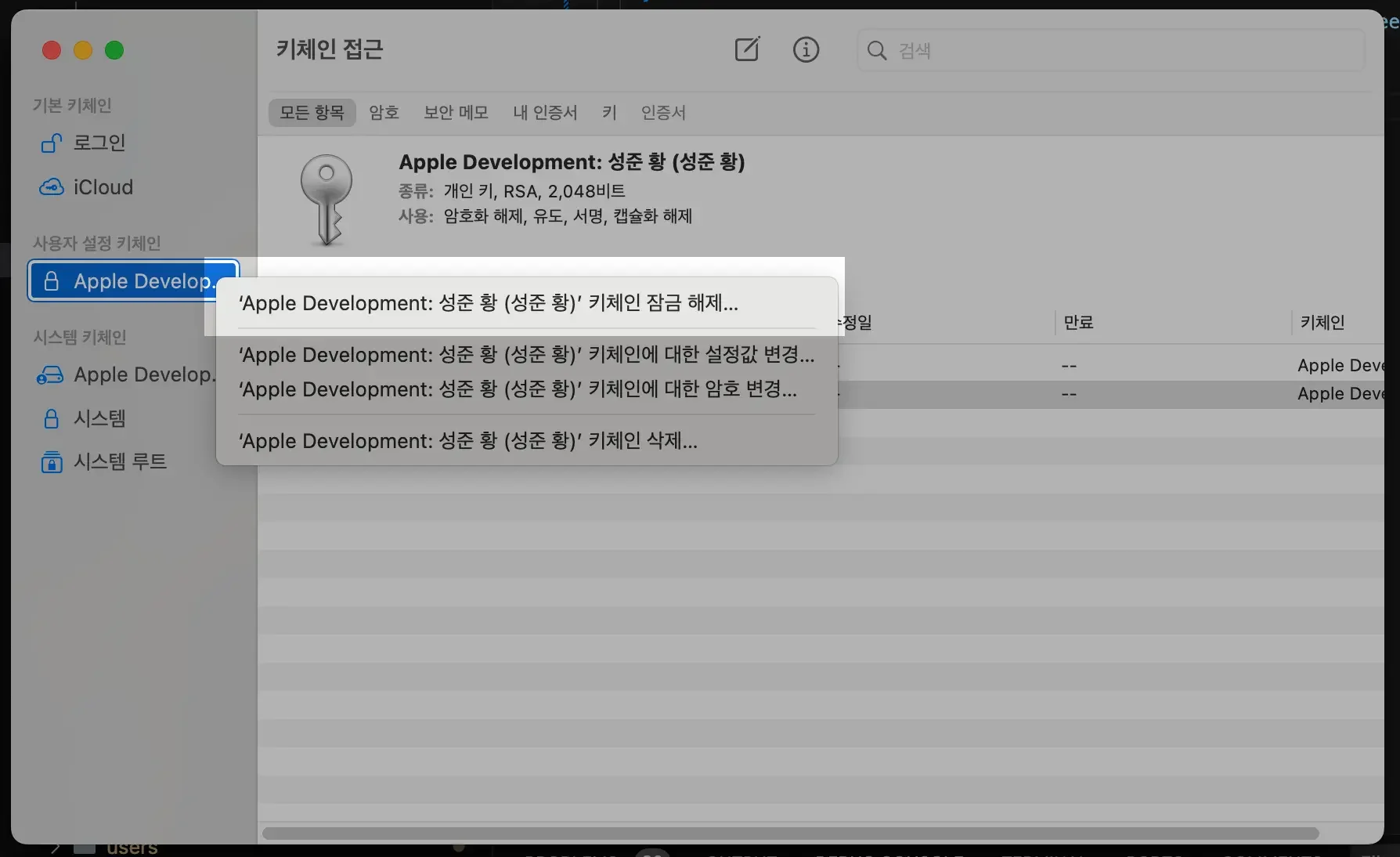
Right-click on Custom Keychain -> Apple Development, and you'll see options like those. Click "Unlock Keychain" and enter your password. I hadn't set one separately, so I just clicked OK without entering anything.
In the business world, the rearview mirror is always clearer than the windshield.
— Warren Buffett