
In my Flutter project, I decided to create folder structures based on architecture, so whenever I create a new domain, I make application, data, domain, and presentation folders under that domain folder.
But doing this manually every time was tedious, so I thought it would be nice to have a script. After looking around, I found that VS Code provides a feature called Tasks.
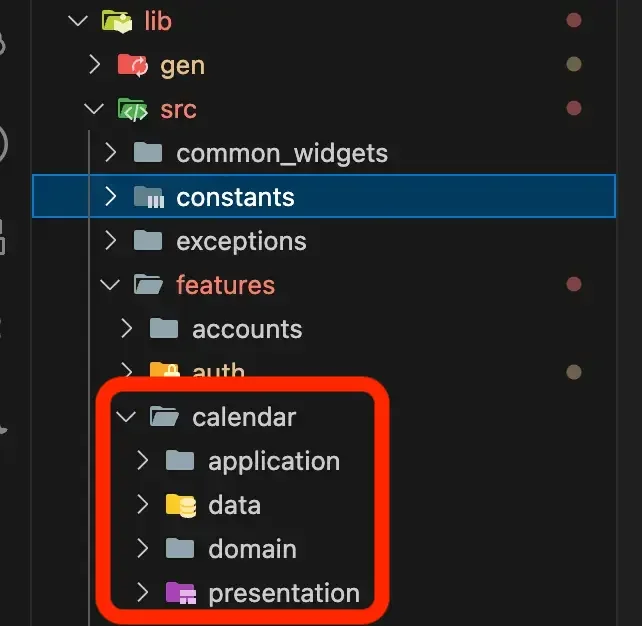
I used this to set it up so that when I enter a domain name, it creates a folder with that domain name under lib/src/features, along with application, data, domain, and presentation subfolders.
Open the Command Palette (Shift + Cmd + P) and type "tasks" to see several options.
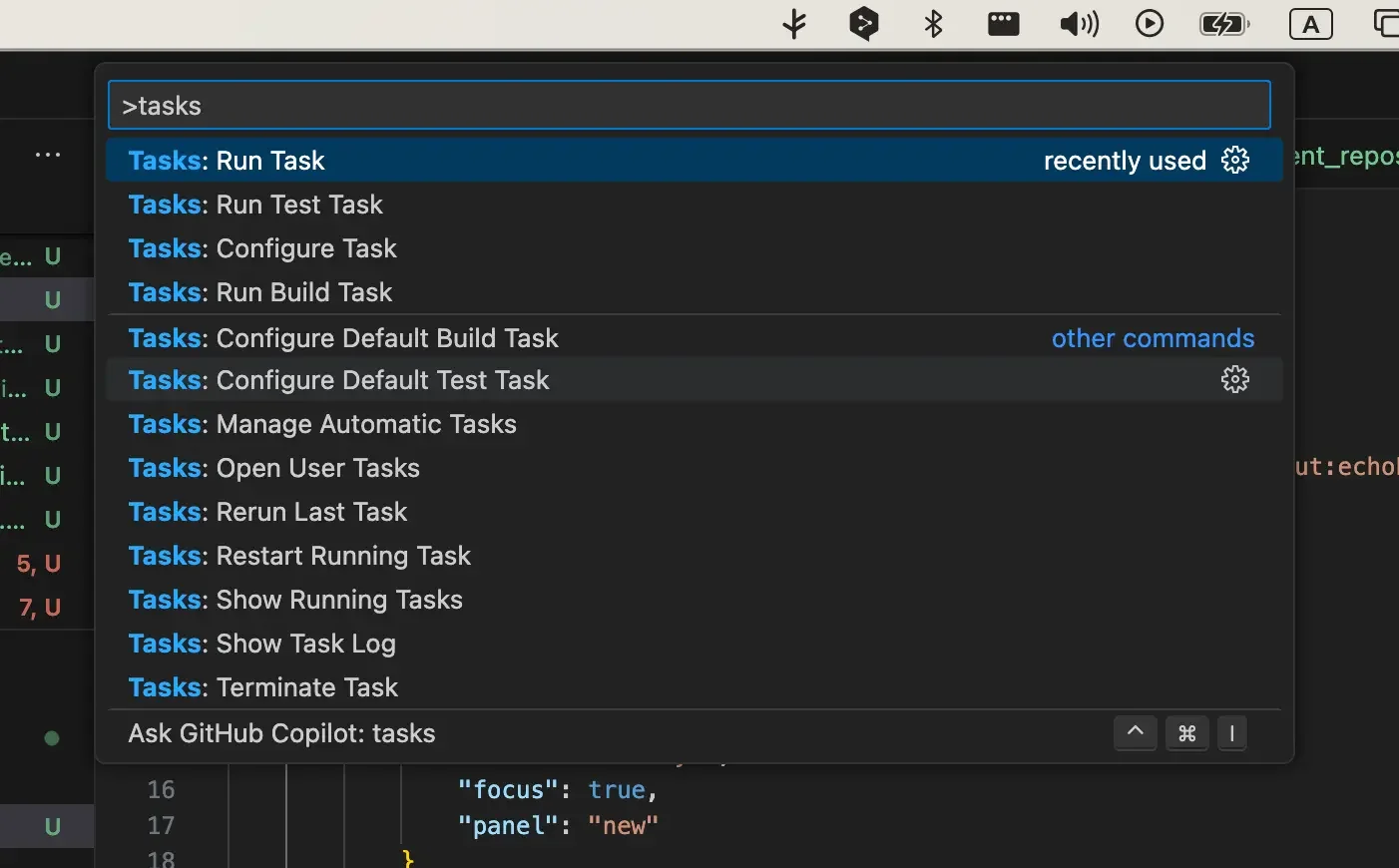
What we need to do is create a .vscode/tasks.json file if it doesn't exist yet.
Rather than creating the file manually, it's easier to use the Command Palette, so let's go with that.
Since we're creating a task, select Tasks: Configure Task.
Then it'll ask you to select something else. Just pick anything. Since I'm working on a Flutter project, Flutter-related commands show up, but I'm going to create a shell-based task, so I'll delete the default content anyway.
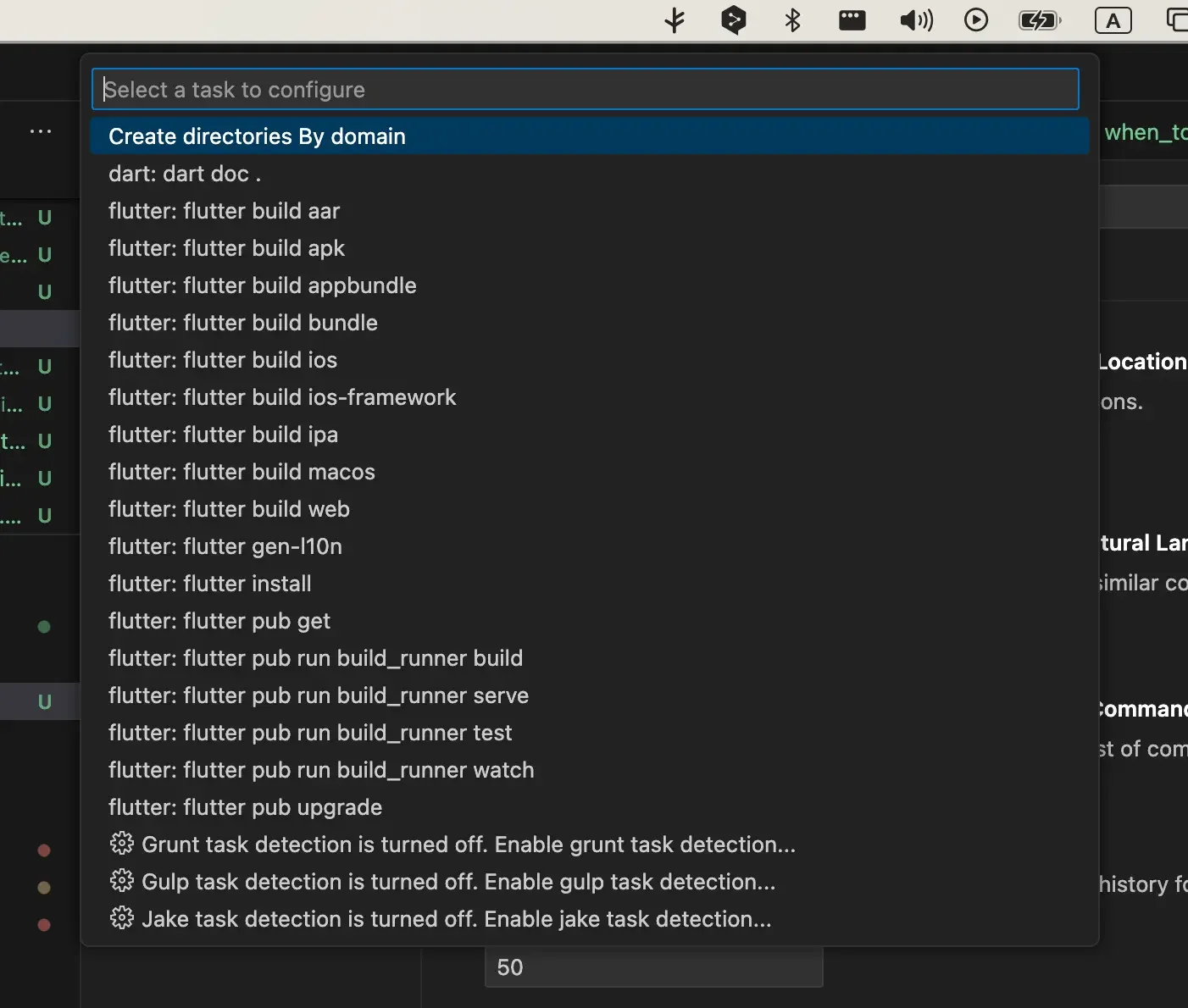
Once you select anything, a tasks.json file will be created with some content already filled in.
Since I want to receive input and use that input as the domain folder name, I wrote it like this:
{
  "version": "2.0.0",
  "tasks": [
    {
      "label": "Create directories By domain",
      "type": "shell",
      "command": "mkdir -p ${workspaceFolder}/lib/src/features/${input:echoPrompt}/application ${workspaceFolder}/lib/src/features/${input:echoPrompt}/data ${workspaceFolder}/lib/src/features/${input:echoPrompt}/domain ${workspaceFolder}/lib/src/features/${input:echoPrompt}/presentation",
      "args": [],
      "group": {
        "kind": "build",
        "isDefault": true
      },
      "presentation": {
        "echo": true,
        "reveal": "always",
        "focus": true,
        "panel": "new"
      },
      "problemMatcher": []
    }
  ],
  "inputs": [
    {
      "id": "echoPrompt",
      "description": "Please enter a value",
      "default": "calendar",
      "type": "promptString"
    }
  ]
}
To run the created task, open the Command Palette (Shift + Cmd + P) again.
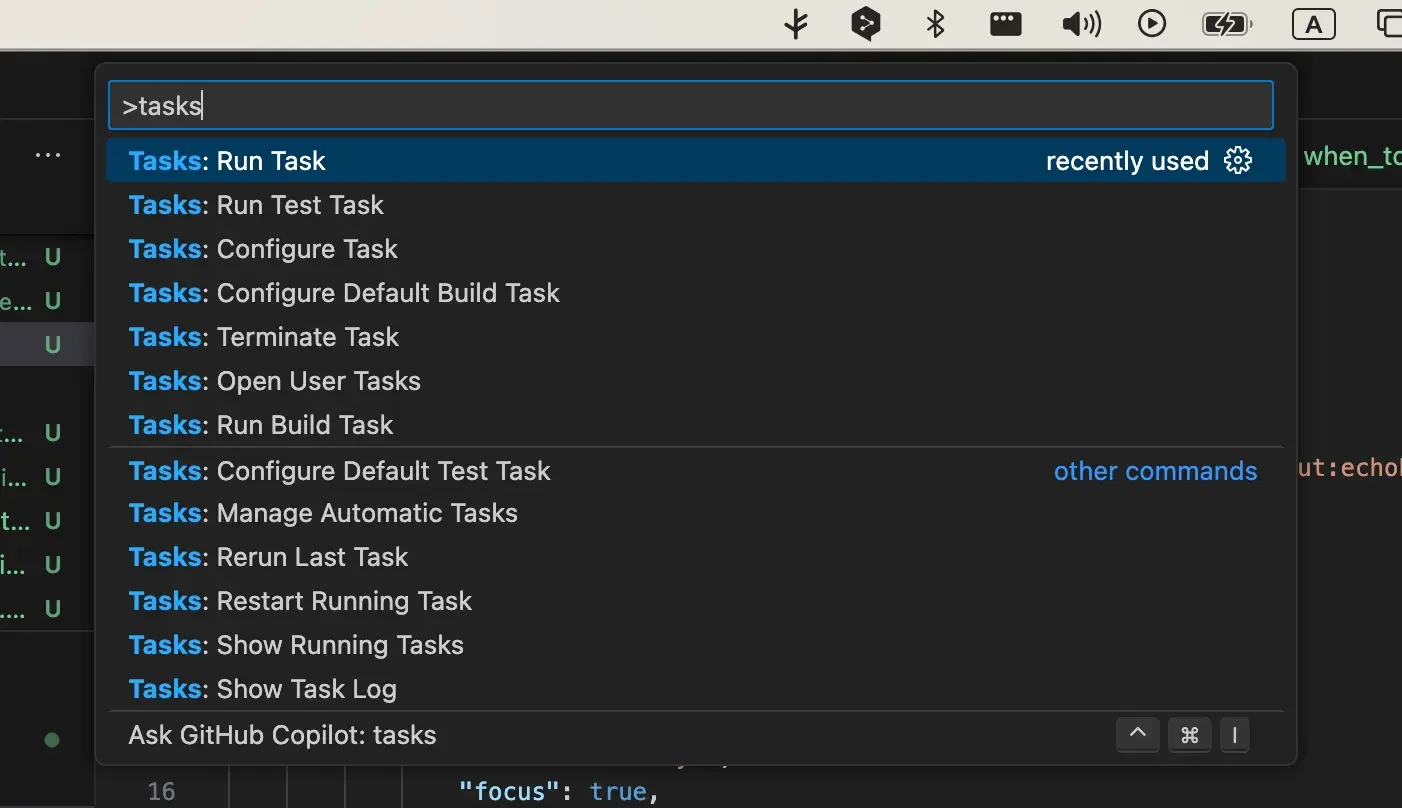
This time, select Tasks: Run Task. You'll see "Create directories By domain" in the list, which is the value of tasks[0].label.
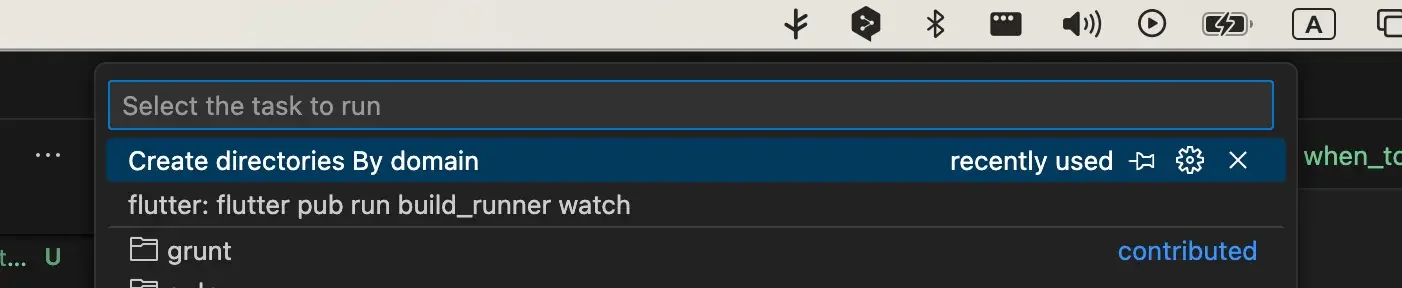
Since I set the default value of inputs[0].default to "calendar" in tasks.json, it already shows with the default value filled in.
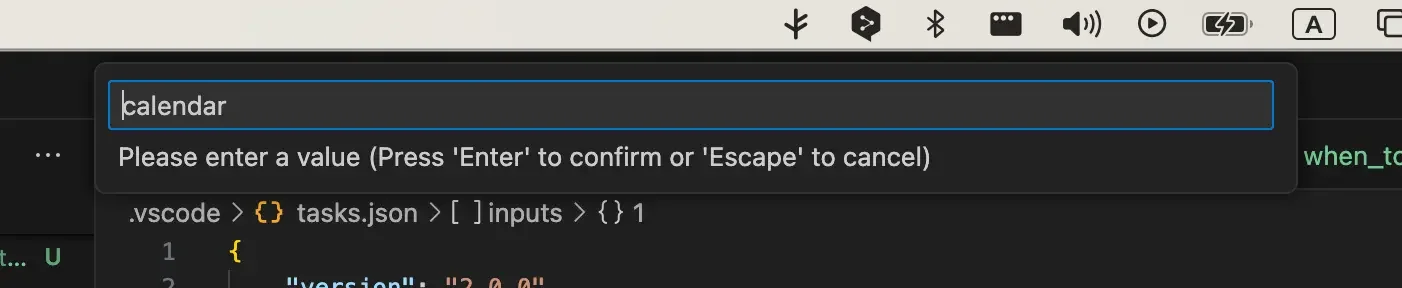
Enter the domain name you want and hit Enter, and you'll get a result like this!
Now that I know how to use it, I can create various tasks to make development even more convenient.
It all depends on how we look at things, and not how they are in themselves.
— Carl Jung