
What Is a Browser?#
Its official name is "web browser," but most people just call it a browser. A browser is a GUI-based application software that communicates bidirectionally with web servers and renders HTML documents and files. It's the program I use the longest on my computer. For the same reason, Google determined that most users spend the majority of their computer time inside a browser and created Chrome OS. As of 2024, most browsers use Chromium.
With a browser, you can go anywhere on the web. When you request data from somewhere, it's sent and received using HTTP. Back in the day, different countries and companies built browsers differently. So some screens and features worked fine on one browser but not on another. To ensure the same content looked consistent across browsers, web standards were created. In the old days of Korean SI projects, government employees mostly used IE (Internet Explorer), so it was crucial that things looked good on IE. But developers would test on Chrome, and sometimes things that worked fine there would break on IE — the classic "it works on my machine" problem.
What Is the Web?
The web is short for World Wide Web (WWW). The web is information on the internet. It's an information-sharing system made up of hypertext documents and links. There are many services on the internet, but the web is the most popular one. You could say that every time you use a browser, you're using the web. As web services have grown more capable, you can now do online shopping, banking, social media, gaming, and more on the web. Other internet services besides the web include email, file transfer, chat, remote access, online gaming, P2P, VoIP, and more.
What Is the Internet?
The internet is a global computer network system that provides data communication services like remote access, file transfer, and email. The internet is sometimes mistakenly called the World Wide Web, but the internet is simply the physical connection of computers and wires around the world.
How Browsers Work Step by Step#
A browser is a software application for navigating and displaying web pages. When a user enters a domain name in the address bar or clicks a link from search results, the browser renders that web page.
1. URL Parsing and Request
When a user enters a URL, the browser goes through the following process:
- URL Parsing: Parses the URL to separate the protocol, domain, path, query, parameters, etc.
- DNS Lookup: Sends a query to a DNS server to convert the domain name into an IP address
- HTTP Request: Sends an HTTP/HTTPS request to the resolved IP address. This request includes the method (GET, POST, etc.), headers, cookies, etc.
2. Server Response Processing
The server processes the HTTP/HTTPS request and sends back a response. The response includes a status code, headers, and body.
- Status Code: Indicates the result — 200 (success), 404 (not found), 500 (server error), etc.
- Headers: Contain various metadata like content type, cache directives, cookies, etc.
- Body: The actual data that makes up the web page — HTML, CSS, JavaScript, images, etc.
3. HTML Parsing and DOM Creation
The HTML received from the server is parsed to create a DOM (Document Object Model) tree. Building the DOM involves tokenization and tree construction.
- Tokenization: The HTML text is broken down into tokens
- Tree Construction: DOM nodes are created based on tokens and organized into a tree structure
4. CSS Parsing and Render Tree Creation
Like HTML, CSS is also parsed to create a render tree where style rules can be applied.
- CSSOM Creation: CSS is parsed to create the CSSOM (CSS Object Model)
- Render Tree Creation: The DOM and CSSOM are combined to create the render tree. This tree only contains elements that will actually be displayed on screen.
5. Layout Calculation
Based on the render tree, the position and size of each element are calculated.
- Block and Inline Layout: The box model of each element is calculated to determine where it will be placed on screen
6. Paint and Compositing
The calculated layout is converted into actual pixels.
- Paint: Each element is drawn into paint layers including backgrounds, text, images, etc.
- Compositing: Multiple paint layers are combined to create the final screen
7. JavaScript Execution
JavaScript code included in the web page is executed.
- Parsing and Compilation: JavaScript code is parsed and compiled into bytecode
- Execution: Bytecode is executed to perform DOM manipulation, event handling, AJAX requests, etc.
8. Rendering Updates
When JavaScript changes the DOM or CSSOM, the render tree is updated and necessary parts are redrawn.
- Reflow: When the layout changes, it's recalculated
- Repaint: When styles change, the affected elements are redrawn
Browsers also provide various additional features beyond their core functionality:
- Caching: Frequently used resources are cached to improve performance
- Cookies and Local Storage: User data is stored locally to maintain state
- Security: Enhanced security through HTTPS, XSS and CSRF prevention, Content Security Policy (CSP), etc.
- Plugins and Extensions: Support for plugins and extensions that add user-customized features
Browser Architecture#
I've kept this article at a surface level. For a more detailed explanation about browsers, check out the links below!
- The Chromium Projects - Multi-process Architecture
- Google Docs - How Blink works
- Life of a Pixel - Google Slides / YouTube
- The Chromium Projects - How Chromium Displays Web Pages
- MDN - How browsers work
- Quastor - The Architecture of Web Browsers
The core of a browser is rendering. Its purpose is to fetch the content the user wants to see and create a screen that the user can view.
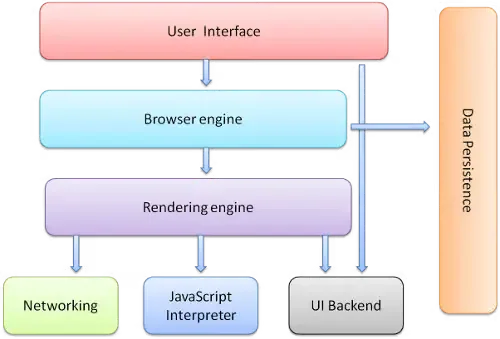
User interface#
The browser's UI displays elements like the address bar, back button, bookmarks, refresh button, etc., providing an interface for user interaction. Think of it as the touchpoint where users interact with the browser.
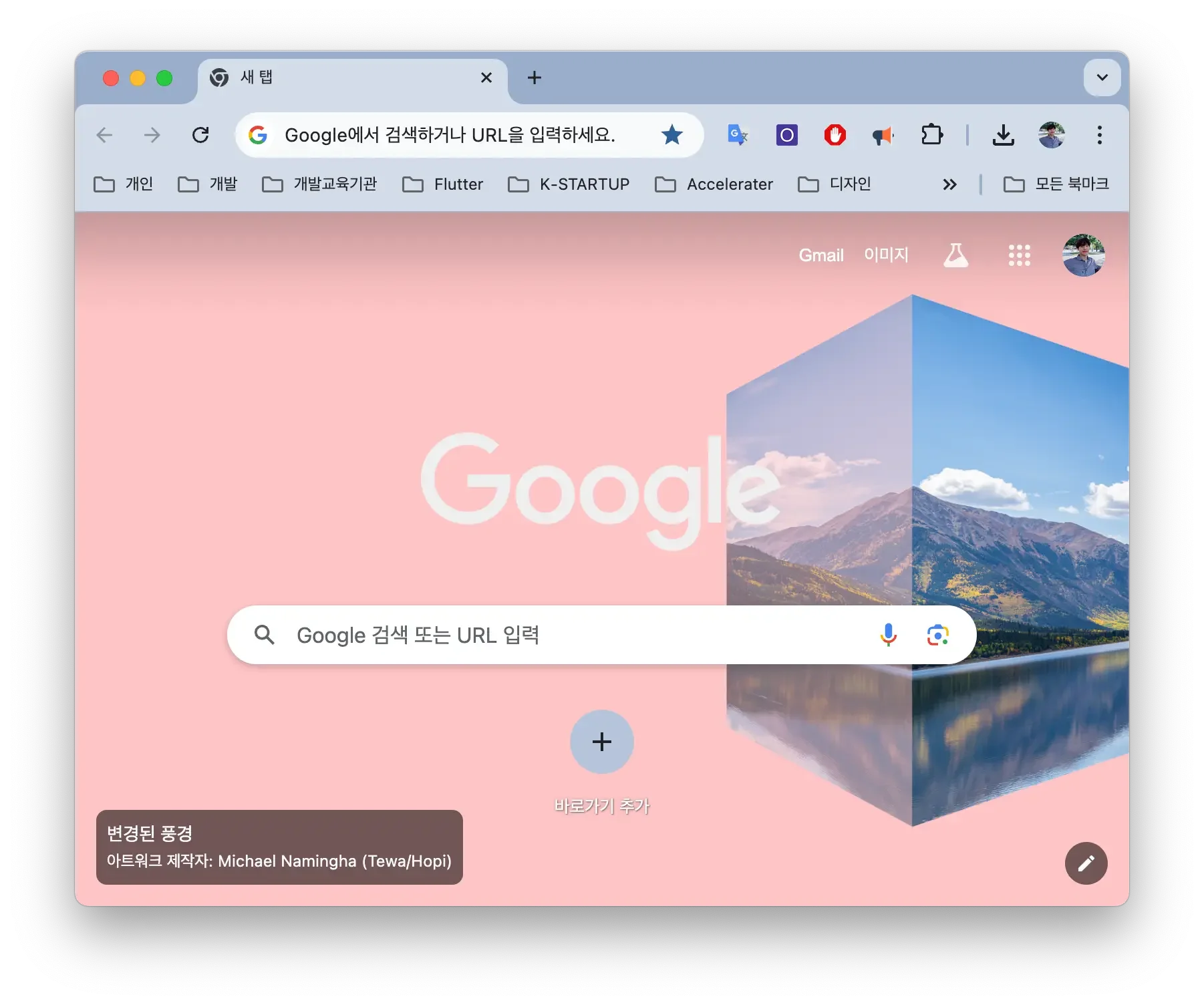
Chrome's UI isn't a standard, but most browsers provide UI that performs the same functions.
Browser engine#
The browser engine acts as an intermediary, guiding the work between the browser's user interface and the rendering engine. It communicates with the rendering engine so that the tasks to be performed can be displayed through the browser GUI.
Rendering engine#
Chromium uses Blink as its rendering engine.
The rendering engine is responsible for displaying the requested content. It starts by fetching the contents of the requested document from the network layer. It takes the HTML code and parses it to create a DOM (Document Object Model) tree. Then the rendering engine parses CSS to create a CSSOM (CSS Object Model) tree. The CSSOM is similar to the DOM, but for CSS rather than HTML.
While CSS is being parsed and the CSSOM is being created, the browser downloads other assets like JavaScript files through the network layer.
The rendering engine communicates with the JavaScript interpreter to execute JavaScript code and manipulate the DOM and CSSOM. Then the rendering engine takes the DOM and CSSOM, combines them to create the render tree.
The rendering engine uses the UI backend to lay out the website on screen and finally paint pixels to the screen.
The entire process the rendering engine goes through is called the Critical Rendering Path.
Networking#
The networking layer is responsible for making network calls to fetch resources. It handles connection limits, request formatting, proxy handling, caching, etc.
JavaScript interpreter#
The JavaScript interpreter is used to parse and execute JavaScript code in the DOM or CSSOM. JavaScript code can be served from web servers or provided by the web browser or browser extensions.
Modern browsers use JIT (Just In Time) compilation instead of a JavaScript interpreter. Chrome uses a JavaScript engine called V8.
UI backend#
The UI backend is responsible for drawing basic widgets like select boxes, input fields, and windows. The UI backend uses operating system UI methods. The rendering engine uses the UI backend layer during the layout and paint phases to display web pages in the browser.
Data persistence#
Browsers store necessary data locally (cookies, cache, etc.). Modern browsers support features like localStorage, IndexedDB, and FileSystem.
Why Can't You Use Java in Browsers — Only JavaScript?#
The JavaScript language was developed in 1995 by Brendan Eich at Netscape as a client-side scripting language that runs in the browser. JavaScript was designed for dynamic behavior and user interaction on web pages. There were other scripting languages used in various browsers, but JavaScript eventually became the standard, leading to widespread adoption.
Major browsers have the scripting language JavaScript built in by default, so users can run it without installing anything separately. However, it can't access system resources and only operates within web pages in the browser. Java is a language better suited for server-side rather than client-side.
Scripting refers to coding in a scripting language. Scripts are primarily used to perform single-scope or limited-scope tasks. You can think of it as JavaScript starting out only being used within browsers and then expanding its scope over time.
Do not wait; the time will never be 'just right.' Start where you stand, and work with whatever tools you may have at your command, and better tools will be found as you go along.
— George Herbert